mirror of
https://github.com/infiniflow/ragflow.git
synced 2026-11-13 23:01:11 +08:00

772 lines
49 KiB
Markdown
772 lines
49 KiB
Markdown
---
|
|
sidebar_position: 4
|
|
title: Data Source Configuration
|
|
sidebar_label: Configuration
|
|
slug: /add_data_source/data_source_configuration
|
|
sidebar_custom_props: {
|
|
categoryIcon: LucideCog
|
|
}
|
|
---
|
|
|
|
# Data Source Configuration
|
|
## Confluence
|
|
|
|
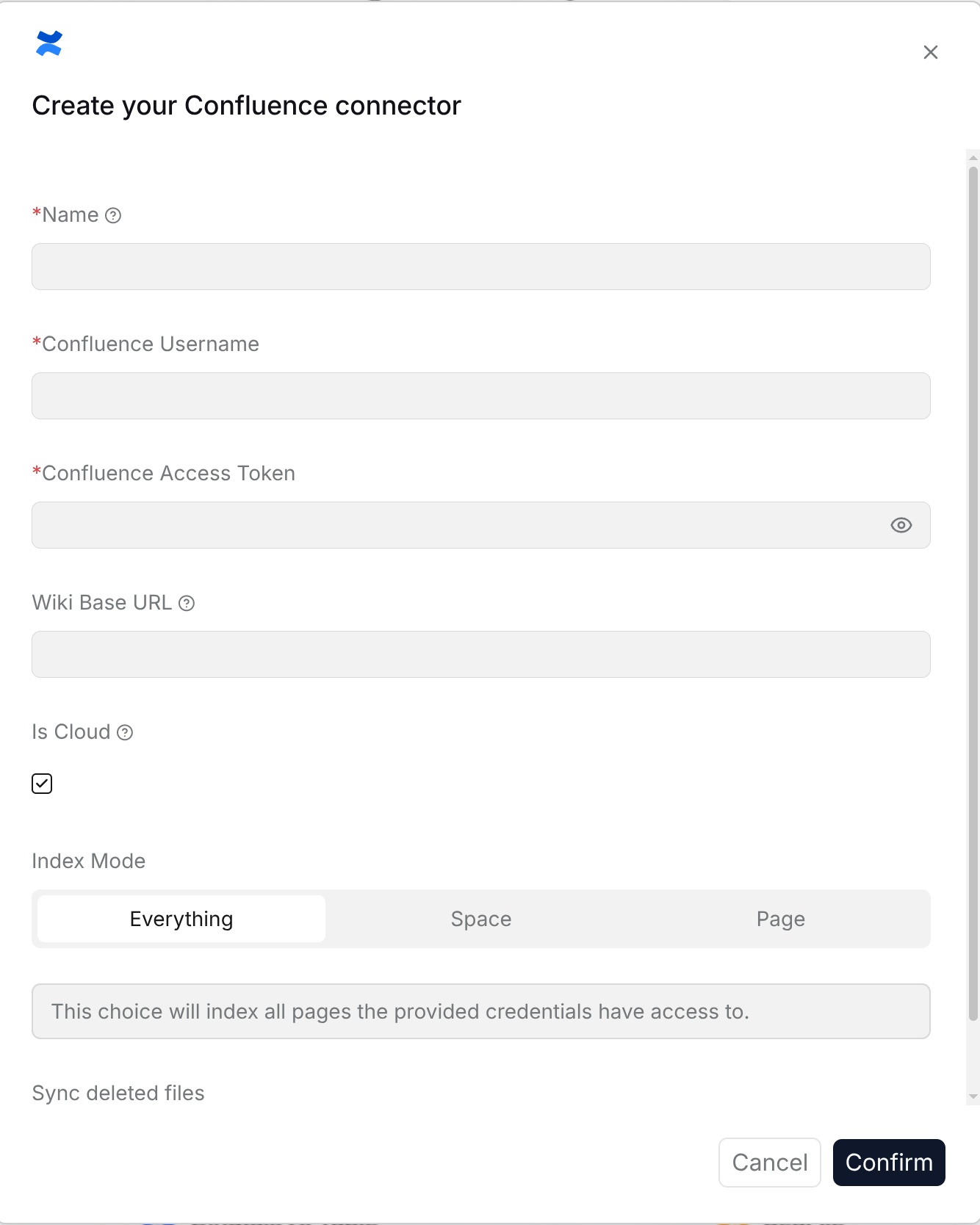
The Confluence data source is used to synchronize spaces, pages, and subpages maintained by a team in Confluence to a RAGFlow Dataset. After configuration, users can query product documents, project descriptions, R&D standards, and other content in the Dataset.
|
|
|
|
**Requirements**: Use a Confluence account with read access to the target spaces, pages, and any attachments or subpages to synchronize. Select the deployment type that matches your site.
|
|
|
|
**Configuration parameters**:
|
|
|
|
- **Name**: Customize the name in RAGFlow to identify this Confluence connection.
|
|
- **Confluence username**: Fill in the account used to access Confluence.
|
|
- **Confluence access token**: Fill in the access token used to access Confluence.
|
|
- **Wiki base URL**: Fill in the base address of the Confluence site.
|
|
- **Is cloud version**: Select according to the Confluence deployment type.
|
|
- **Index mode**: Select the synchronization scope. The options are **All**, **Space**, and **Page**.
|
|
- **Page ID**: Fill this in when the index mode is **Page**.
|
|
- **Space key**: Fill this in when the index mode is **Space**.
|
|
- **Recursive indexing**: Available when the index mode is **Page**. After it is enabled, the page and its subpages are synchronized.
|
|
- **Sync deleted files**: After this is enabled, content deleted from the external system is removed from the Dataset index.
|
|
|
|
|
|
|
|
## Notion
|
|
|
|
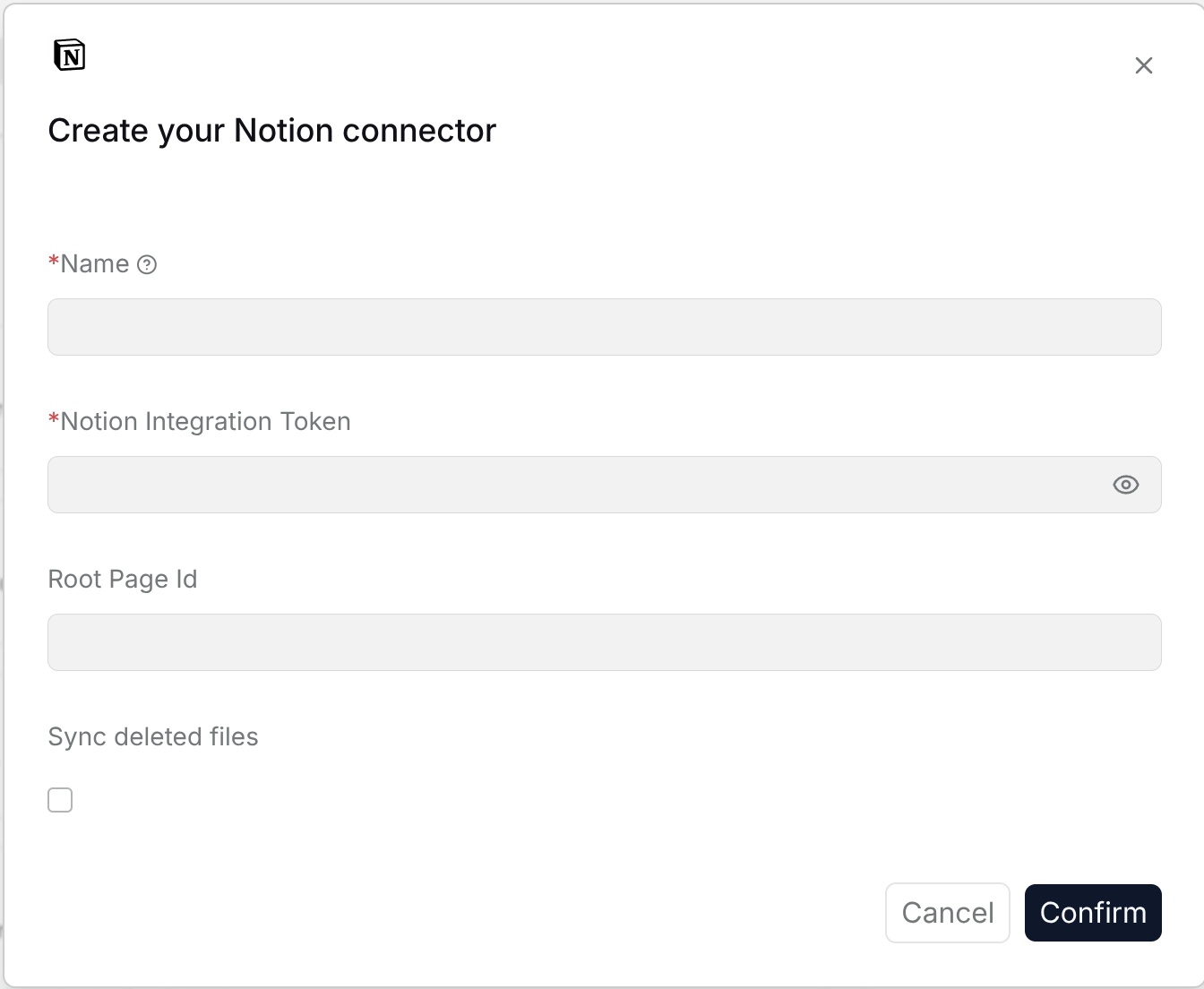
The Notion data source is used to synchronize Notion pages and database content to a RAGFlow Dataset. After configuration, documents, project records, and knowledge cards organized by the team in Notion can be used for retrieval and Q&A.
|
|
|
|
**Requirements**: Share the target pages or databases with the Notion integration used for this connection.
|
|
|
|
**Configuration parameters**:
|
|
|
|
- **Name**: Customize the name in RAGFlow to identify this Notion connection.
|
|
- **Notion integration token**: Fill in the integration token used to access Notion.
|
|
- **Root page ID**: Fill in the root page ID that needs to be synchronized.
|
|
- **Sync deleted files**: After this is enabled, content deleted from the external system is removed from the Dataset index.
|
|
|
|
|
|
|
|
## Google Drive
|
|
|
|
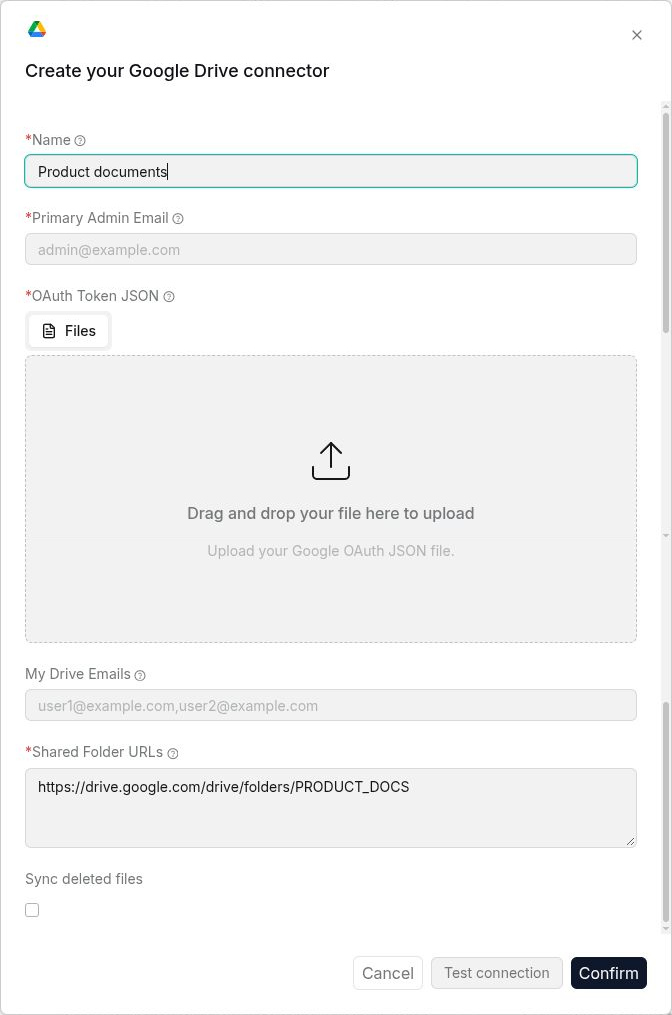
The Google Drive data source is used to synchronize files or folders in Google Drive to a RAGFlow Dataset. After configuration, team cloud documents can be used directly for Dataset retrieval and Q&A.
|
|
|
|
**Requirements**: Use Google OAuth credentials with read access to the target files and folders. For organization-wide access, obtain the required Google Workspace administrator authorization.
|
|
|
|
**Configuration parameters**:
|
|
|
|
- **Name**: Customize the name in RAGFlow to identify this Google Drive connection.
|
|
- **Primary administrator email**: Fill in the administrator email that has access to the target Drive content.
|
|
- **OAuth token JSON**: Fill in or upload the OAuth token JSON used to authorize Google Drive.
|
|
- **My Drive email**: Fill in the email address of the user whose **My Drive** needs to be indexed.
|
|
- **Shared folder URL**: Fill in the Google Drive shared folder URL that needs to be synchronized.
|
|
|
|
|
|
|
|
## OneDrive
|
|
|
|
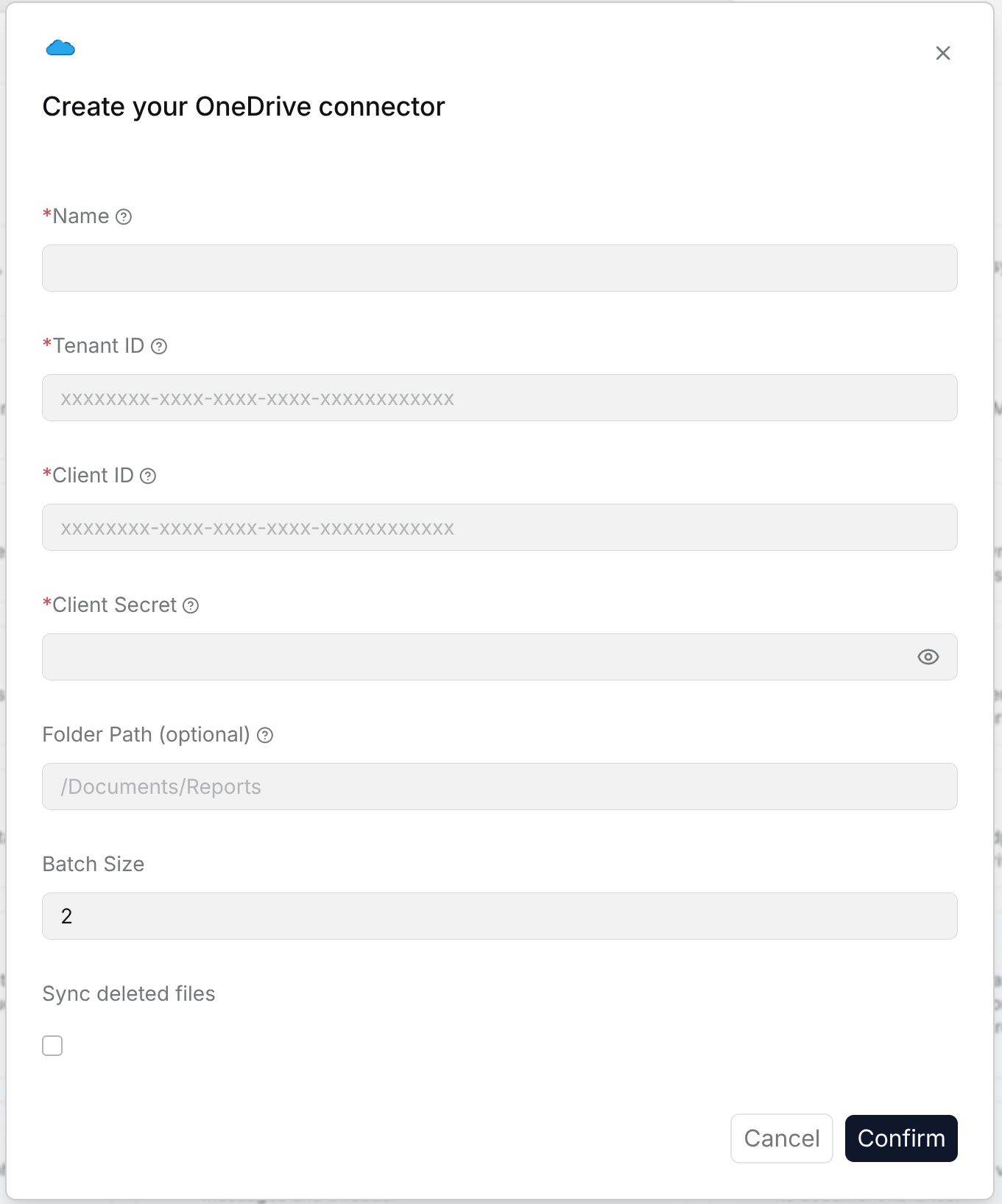
The OneDrive data source is used to synchronize files in OneDrive or OneDrive for Business to a RAGFlow Dataset. After configuration, personal or department cloud files can be queried in a unified way.
|
|
|
|
**Requirements**: Use a Microsoft 365 organization account and an Entra ID application with read access to the target files and folders.
|
|
|
|
**Configuration parameters**:
|
|
|
|
- **Name**: Customize the name in RAGFlow to identify this OneDrive connection.
|
|
- **Tenant ID**: Fill in the Microsoft Entra ID tenant ID.
|
|
- **Client ID**: Fill in the client ID from the app registration.
|
|
- **Client secret**: Fill in the client secret from the app registration.
|
|
- **Folder path (optional)**: Fill in the OneDrive subfolder path.
|
|
- **Batch size**: Set the number of items processed in each batch.
|
|
- **Sync deleted files**: After this is enabled, content deleted from the external system is removed from the Dataset index.
|
|
|
|
|
|
|
|
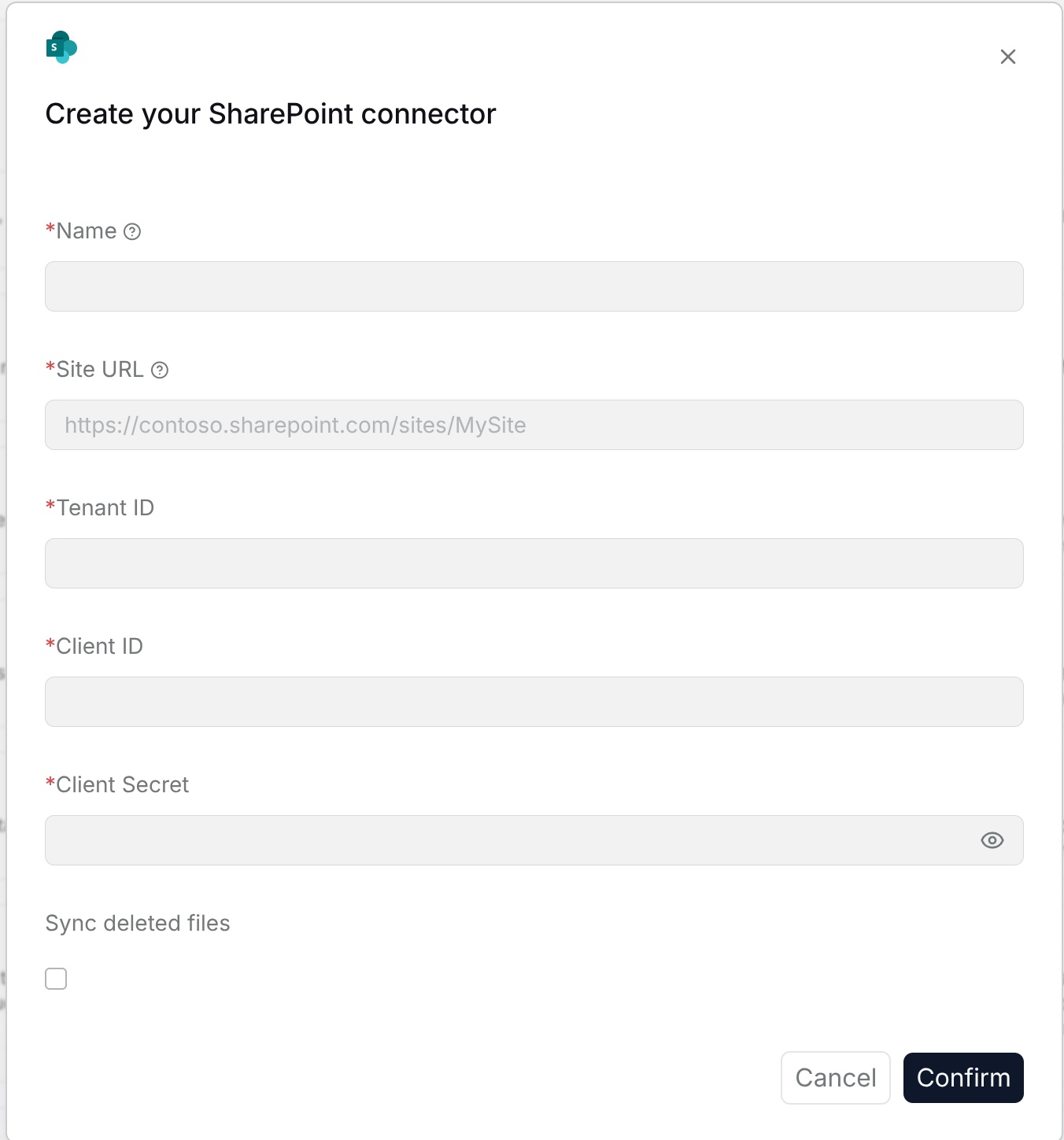
## SharePoint
|
|
|
|
The SharePoint data source is used to synchronize SharePoint site document libraries to a RAGFlow Dataset. After configuration, enterprise policies, department materials, and project files can be managed and queried in a unified way.
|
|
|
|
**Requirements**: Use an Entra ID application authorized to read the target SharePoint site, document library, and files.
|
|
|
|
**Configuration parameters**:
|
|
|
|
- **Name**: Customize the name in RAGFlow to identify this SharePoint connection.
|
|
- **Site URL**: Fill in the complete URL of the SharePoint site.
|
|
- **Tenant ID**: Fill in the Microsoft Entra ID tenant ID.
|
|
- **Client ID**: Fill in the client ID from the app registration.
|
|
- **Client secret**: Fill in the client secret from the app registration.
|
|
- **Sync deleted files**: After this is enabled, content deleted from the external system is removed from the Dataset index.
|
|
|
|
|
|
|
|
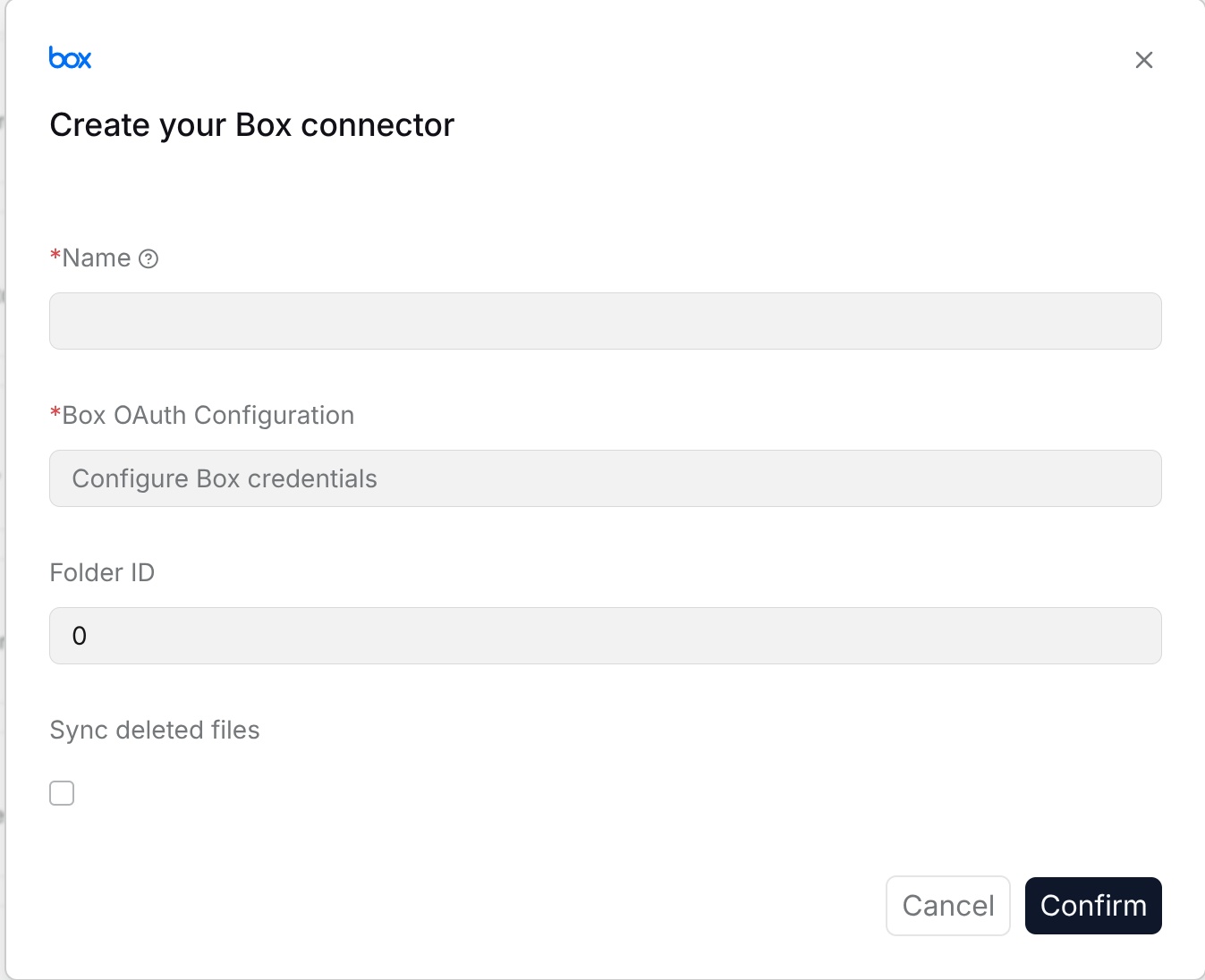
## Box
|
|
|
|
The Box data source is used to synchronize files and folders in Box cloud drive to a RAGFlow Dataset. After configuration, enterprise cloud drive materials and externally collaborated files can be queried in a unified way.
|
|
|
|
**Requirements**: Use a Box application or account with read access to the target folders and files. Obtain administrator authorization if required by your organization.
|
|
|
|
**Configuration parameters**:
|
|
|
|
- **Name**: Customize the name in RAGFlow to identify this Box connection.
|
|
- **Box OAuth configuration**: Fill in the Box OAuth configuration information.
|
|
- **Folder ID**: Fill in the Box folder ID that needs to be synchronized.
|
|
- **Sync deleted files**: After this is enabled, content deleted from the external system is removed from the Dataset index.
|
|
|
|
|
|
|
|
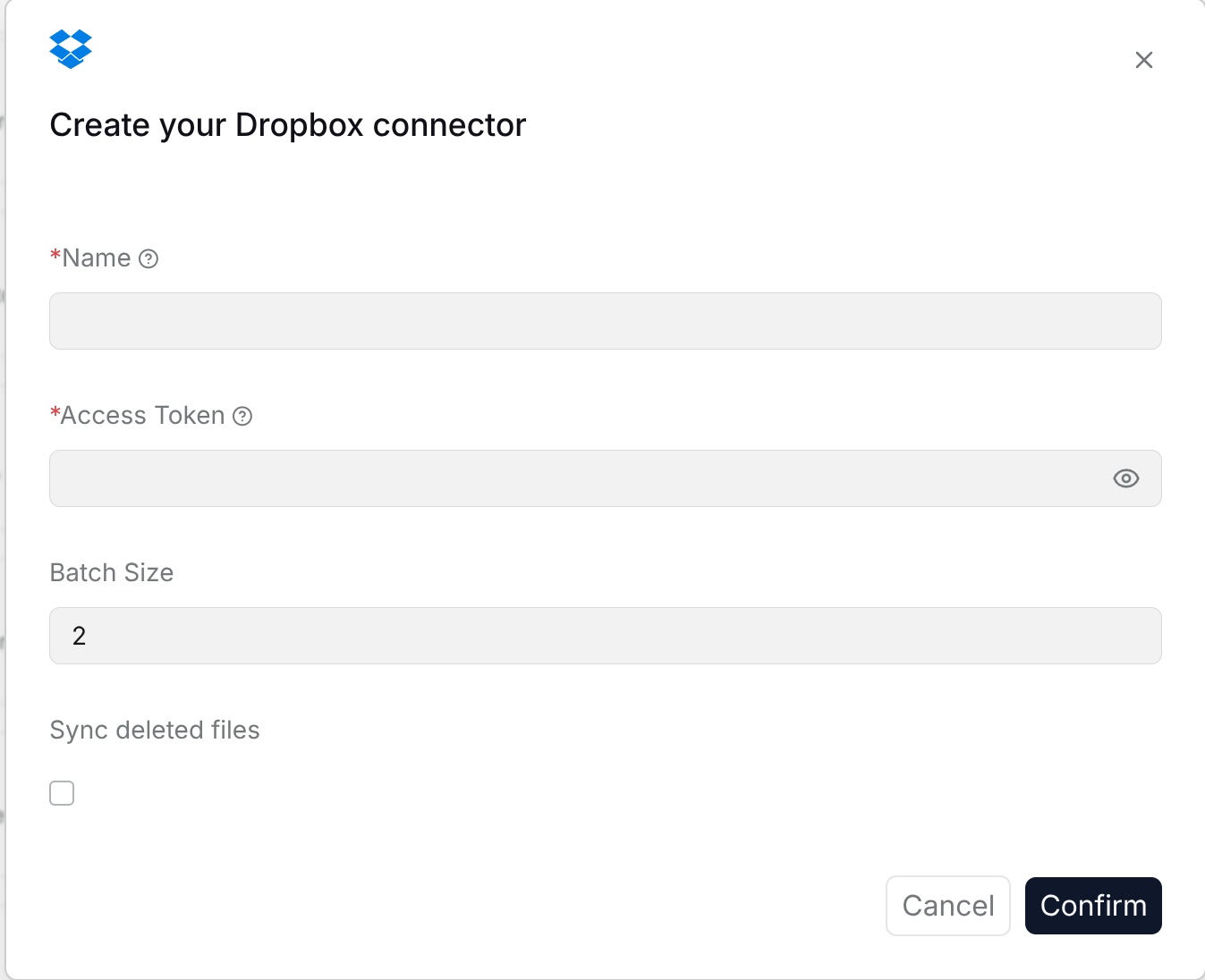
## Dropbox
|
|
|
|
The Dropbox data source is used to synchronize files and folders in Dropbox to a RAGFlow Dataset. After configuration, cloud collaboration files can be used for Dataset retrieval and Q&A.
|
|
|
|
**Requirements**: Use a Dropbox access token with read access to the target folders and files, including any team folders to synchronize.
|
|
|
|
**Configuration parameters**:
|
|
|
|
- **Name**: Customize the name in RAGFlow to identify this Dropbox connection.
|
|
- **Access token**: Fill in the Dropbox access token.
|
|
- **Batch size**: Set the number of files synchronized in each batch.
|
|
- **Sync deleted files**: After this is enabled, content deleted from the external system is removed from the Dataset index.
|
|
|
|
|
|
|
|
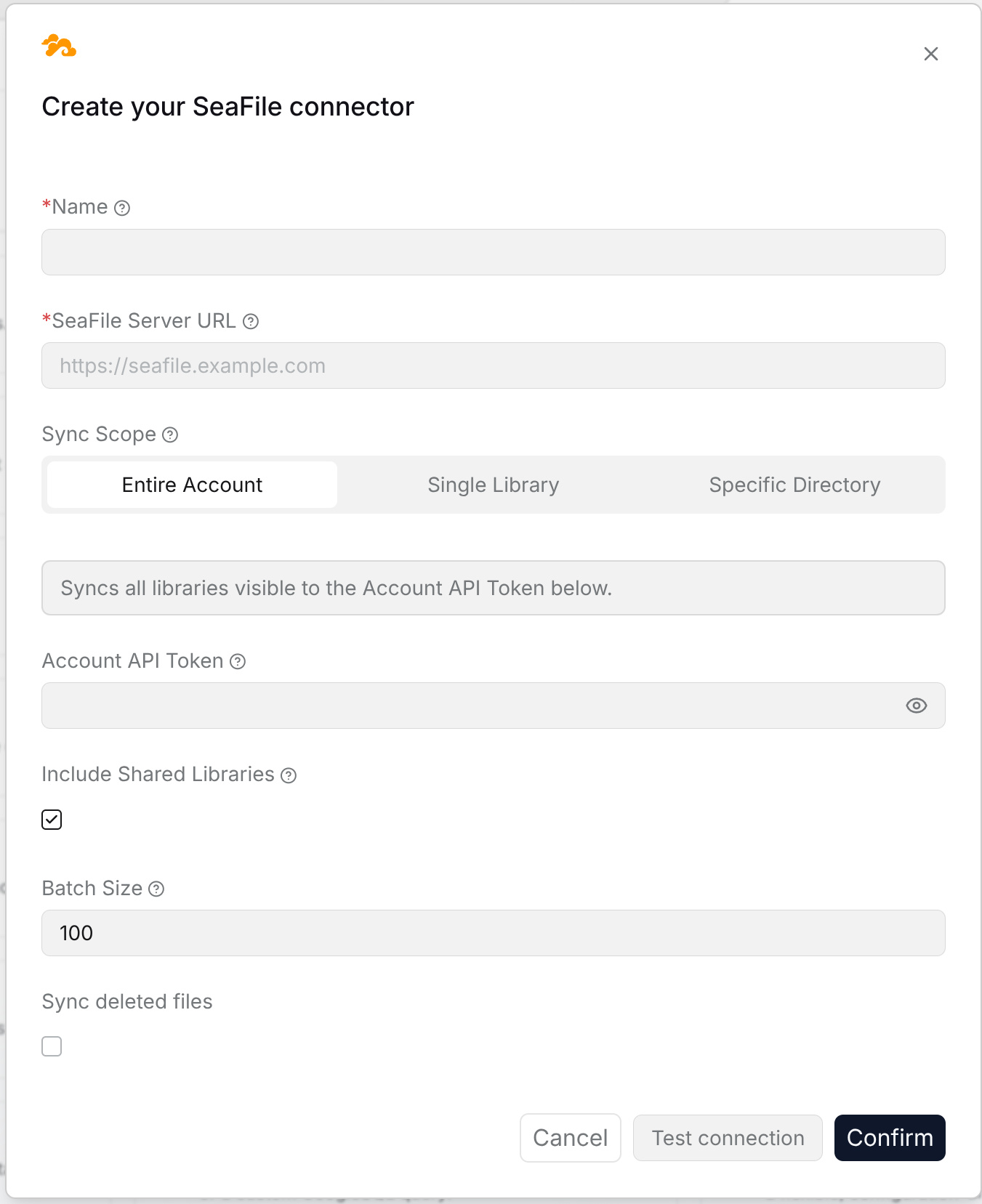
## SeaFile
|
|
|
|
The SeaFile data source is used to synchronize account, library, or directory content in Seafile to a RAGFlow Dataset. After configuration, private cloud drive materials and department files can be retrieved in a unified way.
|
|
|
|
**Requirements**: Use a SeaFile account or library token with read access to the target libraries, directories, and files.
|
|
|
|
**Configuration parameters**:
|
|
|
|
- **Name**: Customize the name in RAGFlow to identify this SeaFile connection.
|
|
- **SeaFile server URL**: Fill in the SeaFile service address.
|
|
- **Synchronization scope**: Select the entire account, a single library, or a specified directory.
|
|
- **Account API token**: Fill in the account API token according to the synchronization scope.
|
|
- **Include shared libraries**: When synchronizing the entire account, select whether to include shared libraries.
|
|
- **Library token**: Fill this in when synchronizing a single library or specified directory.
|
|
- **Library ID**: Fill this in when synchronizing a single library or specified directory.
|
|
- **Directory path**: Fill this in when the synchronization scope is **Specified directory**.
|
|
- **Batch size**: Set the number of items processed in each batch.
|
|
- **Sync deleted files**: After this is enabled, content deleted from the external system is removed from the Dataset index.
|
|
|
|
|
|
|
|
## S3
|
|
|
|
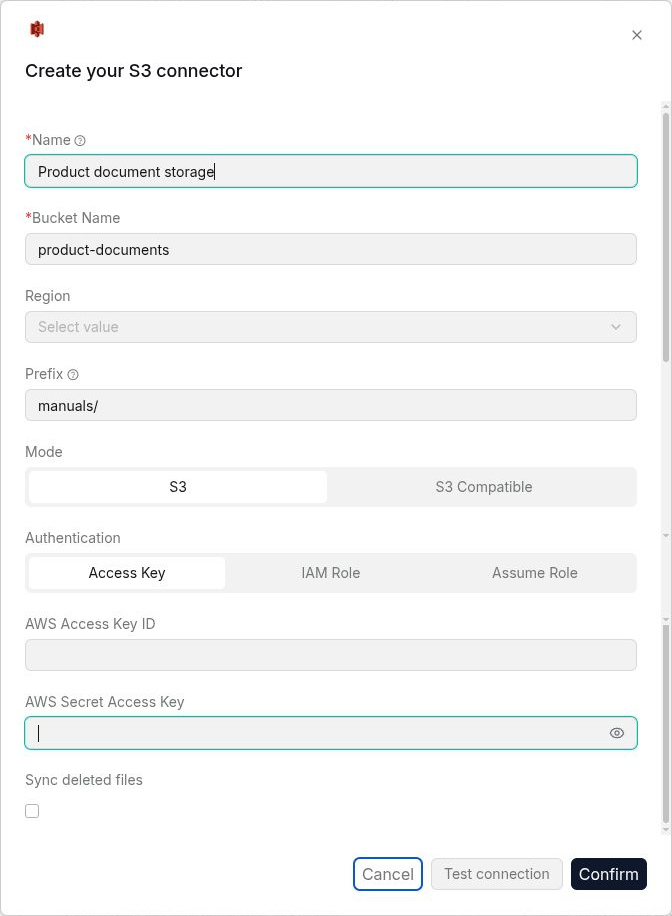
The S3 data source is used to synchronize files in an object storage bucket to a RAGFlow Dataset. After configuration, documents stored in the cloud or in private object storage can be uniformly included in Dataset management.
|
|
|
|
**Requirements**: Use AWS S3 or S3-compatible storage credentials with permission to list the target bucket and read its objects.
|
|
|
|
**Configuration parameters**:
|
|
|
|
- **Name**: Customize the name in RAGFlow to identify this S3 connection.
|
|
- **Bucket name**: Fill in the bucket name that needs to be synchronized.
|
|
- **Region**: Fill in or select the region where the bucket is located.
|
|
- **Prefix**: Used to limit the synchronization path. Leave it empty to synchronize the entire bucket.
|
|
- **Mode**: Select **S3** or **S3 Compatible**.
|
|
- **Authentication method**: In S3 mode, select access key, IAM role, or AssumeRole.
|
|
- **AWS Access Key ID**: Fill this in when selecting access key or S3-compatible mode.
|
|
- **AWS Secret Access Key**: Fill this in when selecting access key or S3-compatible mode.
|
|
- **Role ARN**: Fill this in when using an IAM role or AssumeRole.
|
|
- **Addressing style**: Select virtual-hosted style or path style in S3-compatible mode.
|
|
- **Endpoint URL**: Fill in the endpoint address in S3-compatible mode.
|
|
- **Sync deleted files**: After this is enabled, content deleted from the external system is removed from the Dataset index.
|
|
|
|
|
|
|
|
## Google Cloud Storage
|
|
|
|
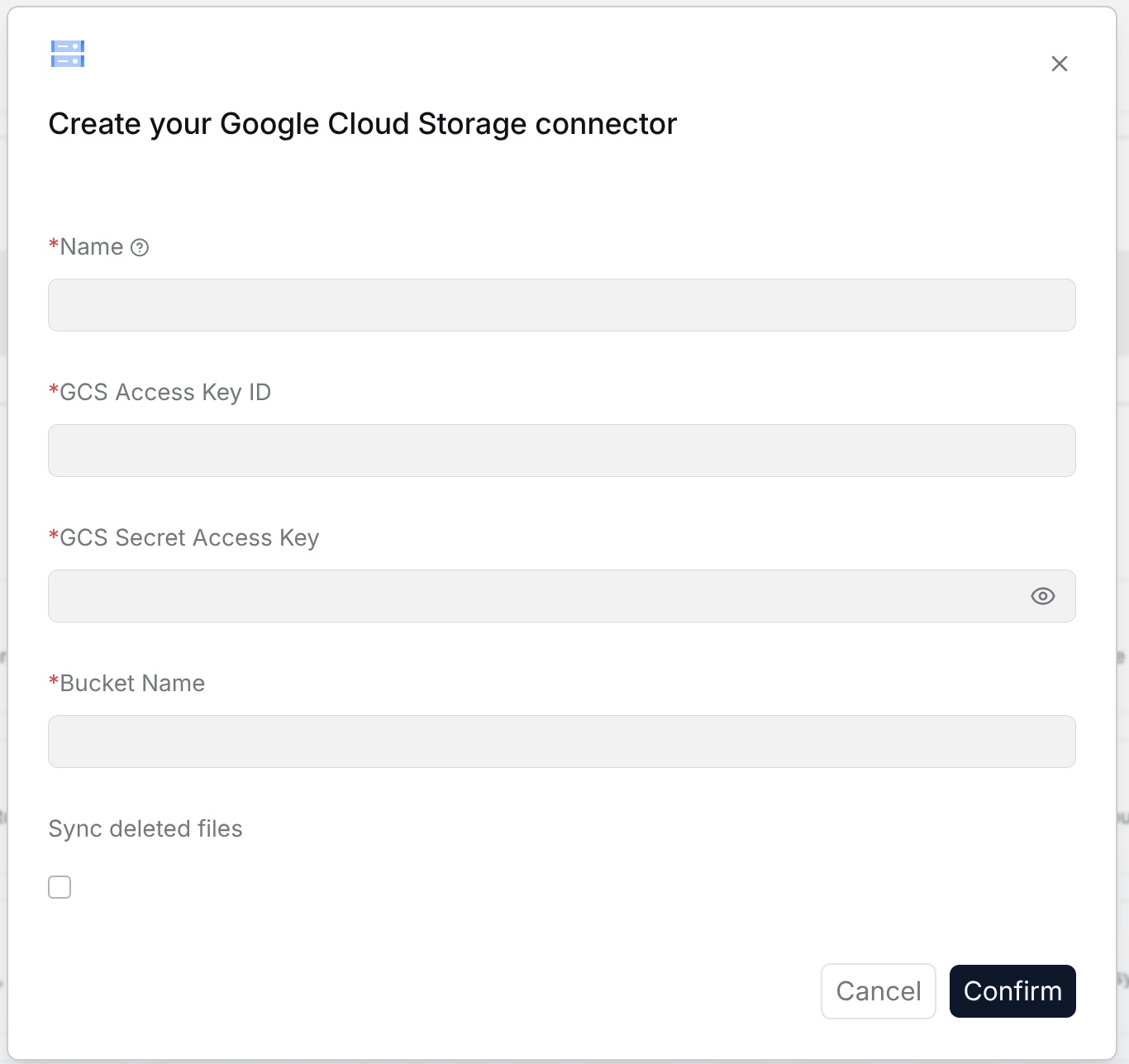
The Google Cloud Storage data source is used to synchronize files in a GCS bucket to a RAGFlow Dataset. After configuration, project materials, reports, and documents on Google Cloud can enter the Dataset for team retrieval.
|
|
|
|
**Requirements**: Use Google Cloud Storage credentials with permission to list the target bucket and read its objects.
|
|
|
|
**Configuration parameters**:
|
|
|
|
- **Name**: Customize the name in RAGFlow to identify this Google Cloud Storage connection.
|
|
- **GCS access key ID**: Fill in the GCS access key ID.
|
|
- **GCS access key**: Fill in the GCS access key.
|
|
- **Bucket name**: Fill in the bucket name that needs to be synchronized.
|
|
- **Sync deleted files**: After this is enabled, content deleted from the external system is removed from the Dataset index.
|
|
|
|
|
|
|
|
## Oracle Storage
|
|
|
|
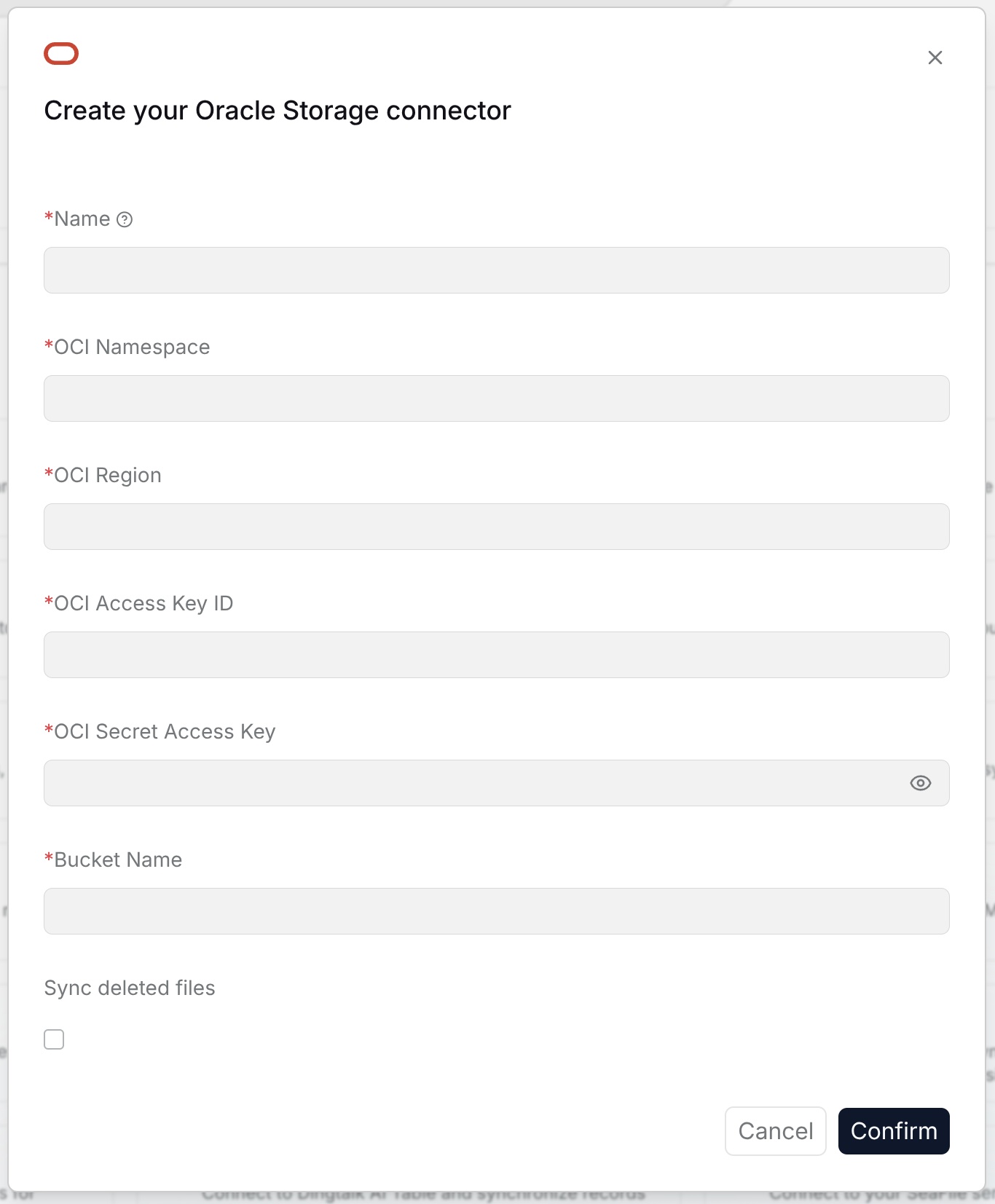
The Oracle Storage data source is used to synchronize files in Oracle Cloud Object Storage to a RAGFlow Dataset. After configuration, documents and archive materials stored on OCI can be retrieved in a unified way.
|
|
|
|
**Requirements**: Use OCI credentials with permission to list the target bucket and read its objects.
|
|
|
|
**Configuration parameters**:
|
|
|
|
- **Name**: Customize the name in RAGFlow to identify this Oracle Storage connection.
|
|
- **Namespace**: Fill in the OCI object storage namespace.
|
|
- **OCI region**: Fill in the OCI region.
|
|
- **OCI access key ID**: Fill in the OCI access key ID.
|
|
- **OCI access key**: Fill in the OCI access key.
|
|
- **Bucket name**: Fill in the bucket name that needs to be synchronized.
|
|
- **Sync deleted files**: After this is enabled, content deleted from the external system is removed from the Dataset index.
|
|
|
|
|
|
|
|
## R2
|
|
|
|
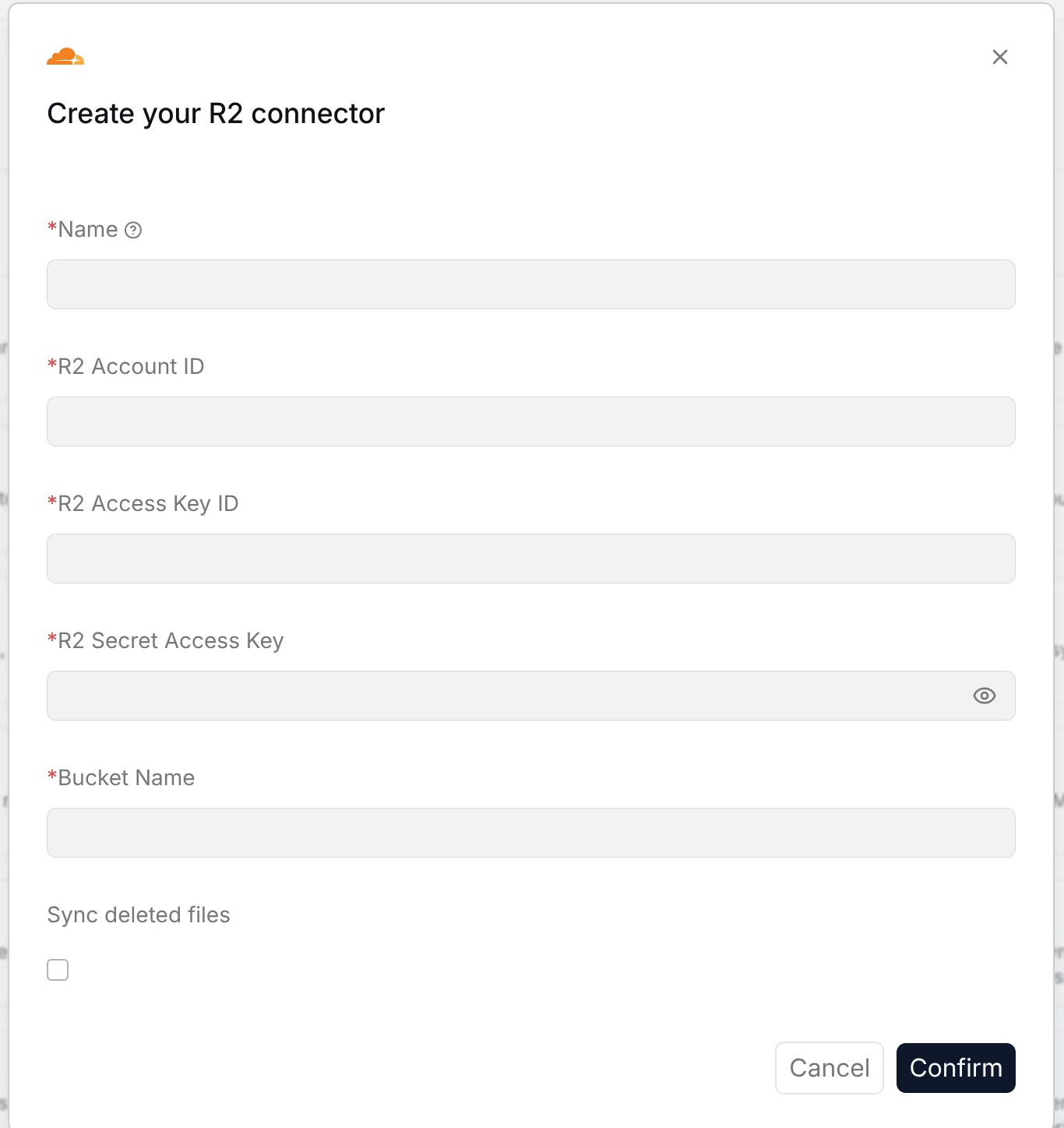
The R2 data source is used to synchronize files in a Cloudflare R2 bucket to a RAGFlow Dataset. After configuration, public materials, business files, or historical documents stored in R2 can be queried in a unified way.
|
|
|
|
**Requirements**: Use a Cloudflare R2 access key with permission to list the target bucket and read its objects.
|
|
|
|
**Configuration parameters**:
|
|
|
|
- **Name**: Customize the name in RAGFlow to identify this R2 connection.
|
|
- **R2 account ID**: Fill in the Cloudflare account ID.
|
|
- **R2 access key ID**: Fill in the R2 access key ID.
|
|
- **R2 access key**: Fill in the R2 access key.
|
|
- **Bucket name**: Fill in the bucket name that needs to be synchronized.
|
|
- **Sync deleted files**: After this is enabled, content deleted from the external system is removed from the Dataset index.
|
|
|
|
|
|
|
|
## Azure Blob Storage
|
|
|
|
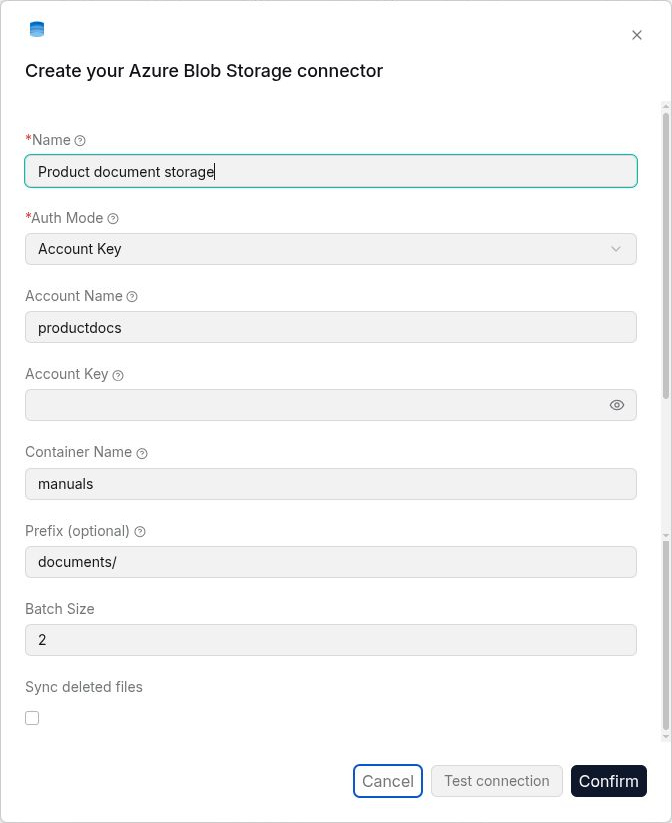
The Azure Blob Storage data source is used to synchronize files in an Azure Blob container to a RAGFlow Dataset. After configuration, materials, reports, and archive files in an Azure cloud environment can be queried in a unified way.
|
|
|
|
**Requirements**: Use Azure storage credentials with read access to the target container and blobs.
|
|
|
|
**Configuration parameters**:
|
|
|
|
- **Name**: Customize the name in RAGFlow to identify this Azure Blob Storage connection.
|
|
- **Authentication mode**: Select account key, connection string, or SAS URL.
|
|
- **Account name**: Fill this in when using account key mode.
|
|
- **Account key**: Fill this in when using account key mode.
|
|
- **Connection string**: Fill this in when using connection string mode.
|
|
- **Container URL**: Fill this in when using SAS URL mode.
|
|
- **SAS token**: Fill this in when using SAS URL mode.
|
|
- **Container name**: Fill in the container name that needs to be synchronized.
|
|
- **Prefix (optional)**: Used to limit the synchronization path.
|
|
- **Batch size**: Set the number of files processed in each batch.
|
|
- **Sync deleted files**: After this is enabled, content deleted from the external system is removed from the Dataset index.
|
|
|
|
|
|
|
|
## MySQL
|
|
|
|
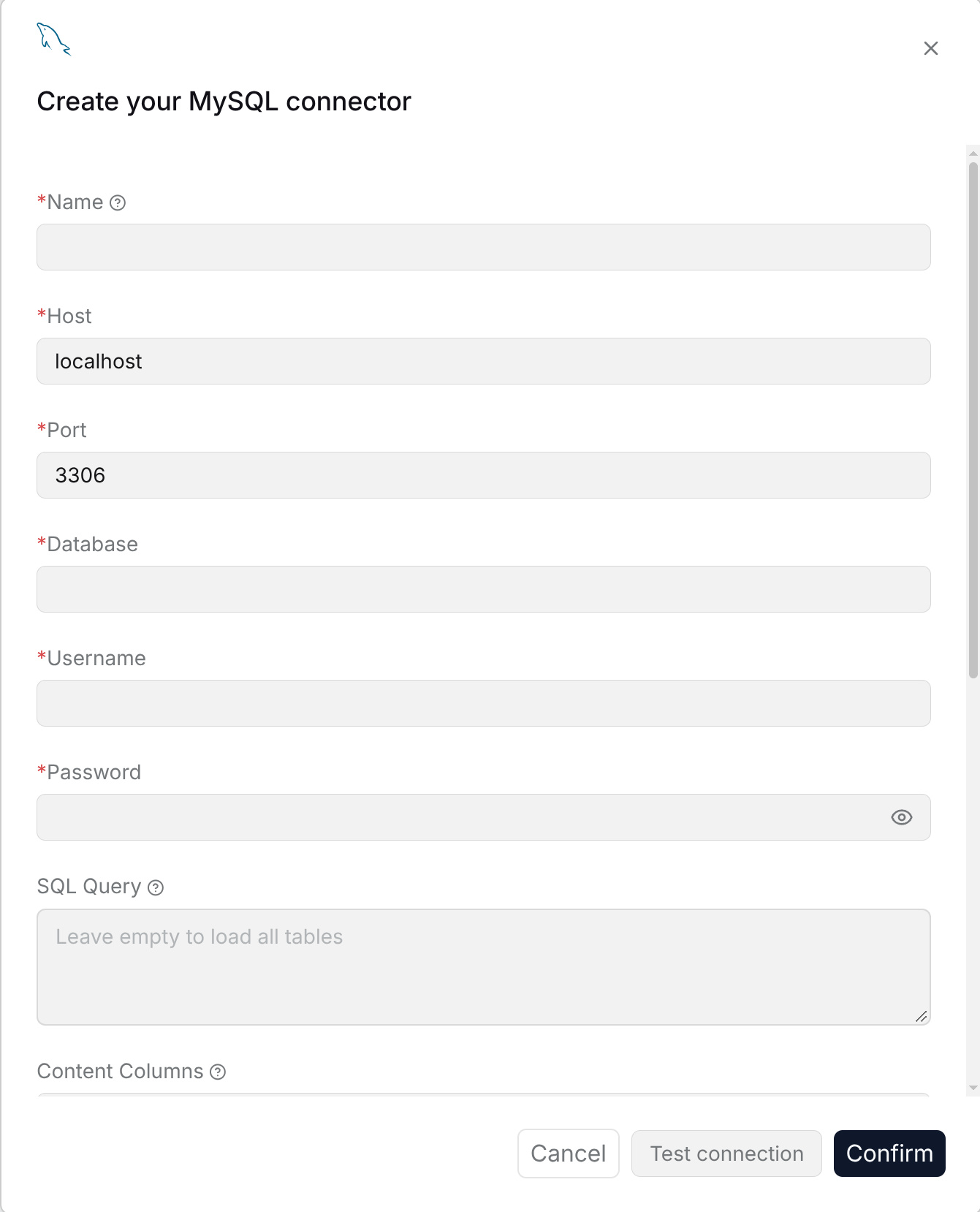
The MySQL data source is used to synchronize table records or query results in MySQL to a RAGFlow Dataset. After configuration, structured business data can be used for retrieval and Q&A.
|
|
|
|
**Requirements**: Use a database account with SELECT permission on the target tables. A read-only account is recommended.
|
|
|
|
**Configuration parameters**:
|
|
|
|
- **Name**: Enter a connection name for display in RAGFlow.
|
|
- **Host**: Enter the database hostname or IP address reachable from the RAGFlow server.
|
|
- **Port**: Enter the MySQL service port, usually `3306`.
|
|
- **Database**: Enter the database name to read.
|
|
- **Username / Password**: Enter the database account and password. Use an account with read access to the required tables.
|
|
- **SQL Query**: Enter a `SELECT` query to limit the imported rows or columns. Leave it empty to load all tables in the database.
|
|
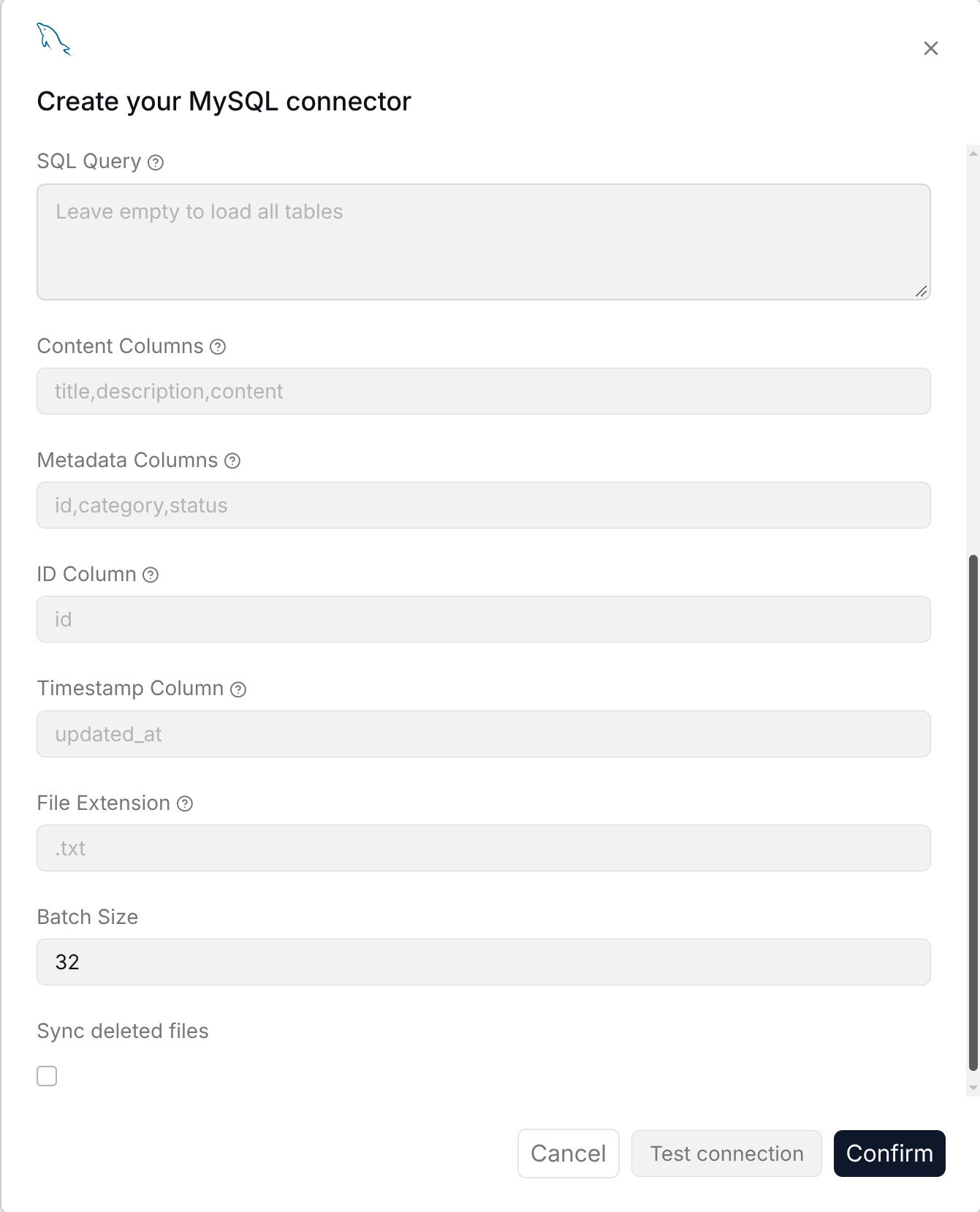
- **Content Columns**: Enter the column names to use as document text, separated by commas, such as `title,description,content`.
|
|
- **Metadata Columns**: Enter comma-separated column names to store as metadata, such as `category,status`.
|
|
- **ID Column**: Enter a stable, unique record identifier, such as `id`, so records can be identified across synchronizations.
|
|
- **Timestamp Column**: Enter the last-update column, such as `updated_at`, for incremental synchronization.
|
|
- **File Extension**: Enter the extension for generated documents, such as `.txt`, `.md`, or `.html`. Match it to the content format.
|
|
- **Batch Size**: Enter a positive number of records to process per batch.
|
|
- **Sync deleted files**: Enable this to remove synchronized documents when their source records are deleted.
|
|
|
|
When using a custom query, use the column names or aliases returned by that query for the column settings. Click **Test connection** to check the configuration, then **Confirm** to create the connection.
|
|
|
|
|
|
|
|
|
|
|
|
## PostgreSQL
|
|
|
|
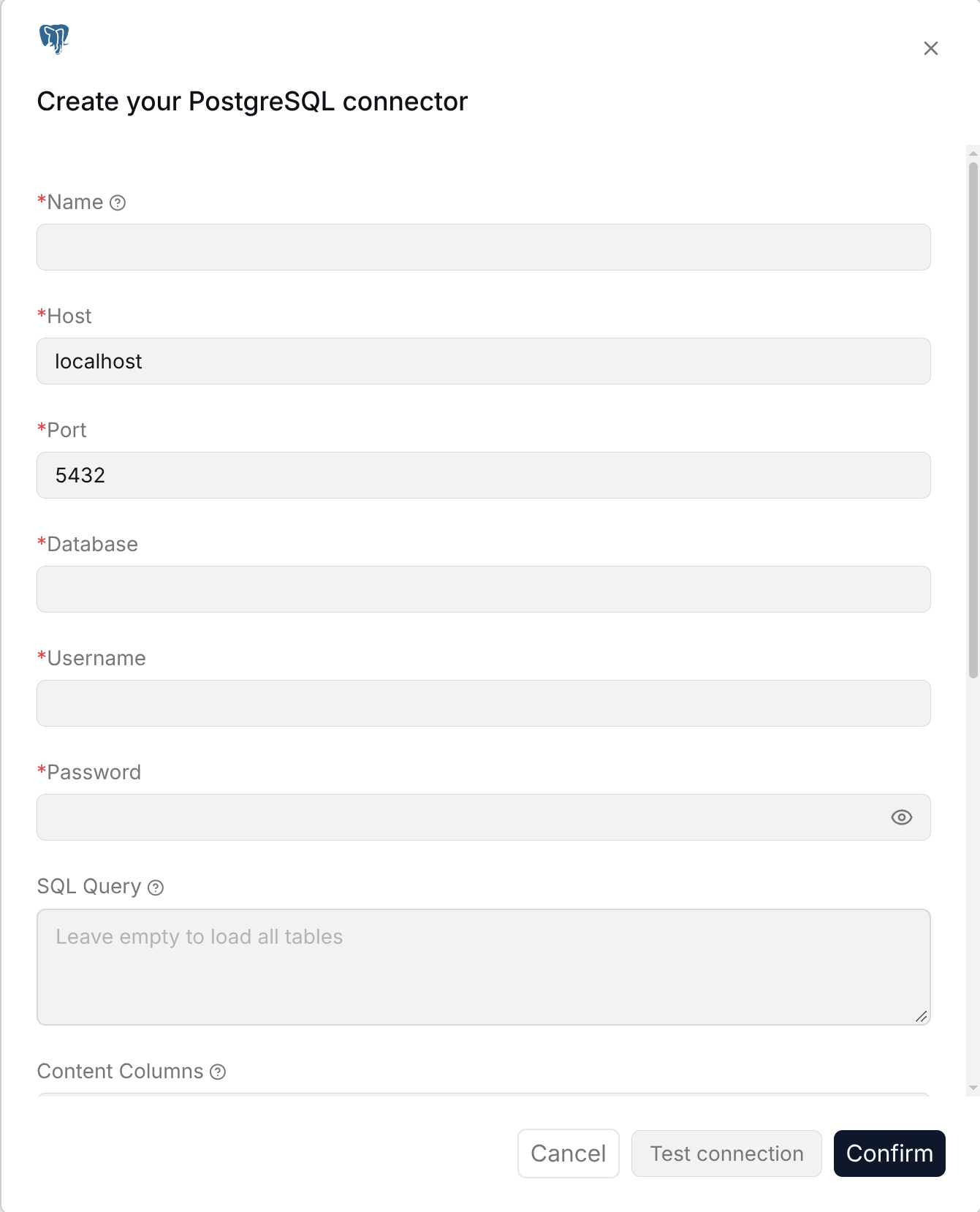
The PostgreSQL data source is used to synchronize table records or query results in PostgreSQL to a RAGFlow Dataset. After configuration, structured business data can be used for retrieval and Q&A.
|
|
|
|
**Requirements**: Use a database account with SELECT permission on the target tables. A read-only account is recommended.
|
|
|
|
**Configuration parameters**:
|
|
|
|
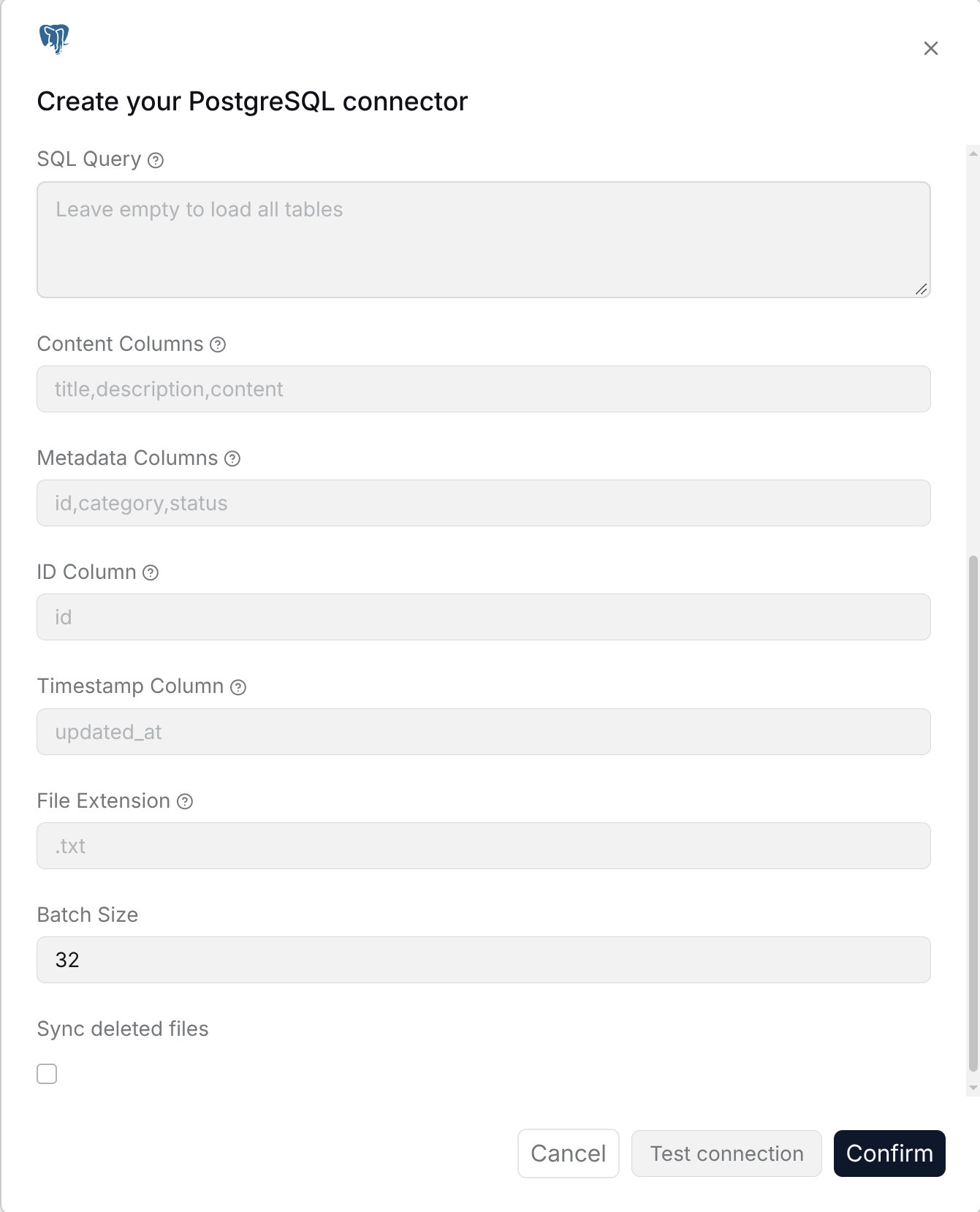
The fields and column settings are the same as those for **MySQL** above: **Name**, **Host**, **Port**, **Database**, **Username**, **Password**, **SQL Query**, **Content Columns**, **Metadata Columns**, **ID Column**, **Timestamp Column**, **File Extension**, **Batch Size**, and **Sync deleted files**.
|
|
|
|
Use the PostgreSQL service port, usually `5432`, and PostgreSQL syntax for a custom `SELECT` query. Leave **SQL Query** empty to load all tables. Click **Test connection**, then **Confirm**.
|
|
|
|
|
|
|
|
|
|
|
|
## BigQuery
|
|
|
|
The BigQuery data source is used to synchronize table records or query results in BigQuery to a RAGFlow Dataset. After configuration, structured data and analysis results in Google Cloud can be retrieved and used for Q&A.
|
|
|
|
**Requirements**: Use Google Cloud credentials with query and read permissions for the target BigQuery project, dataset, and table.
|
|
|
|
**Configuration parameters**:
|
|
|
|
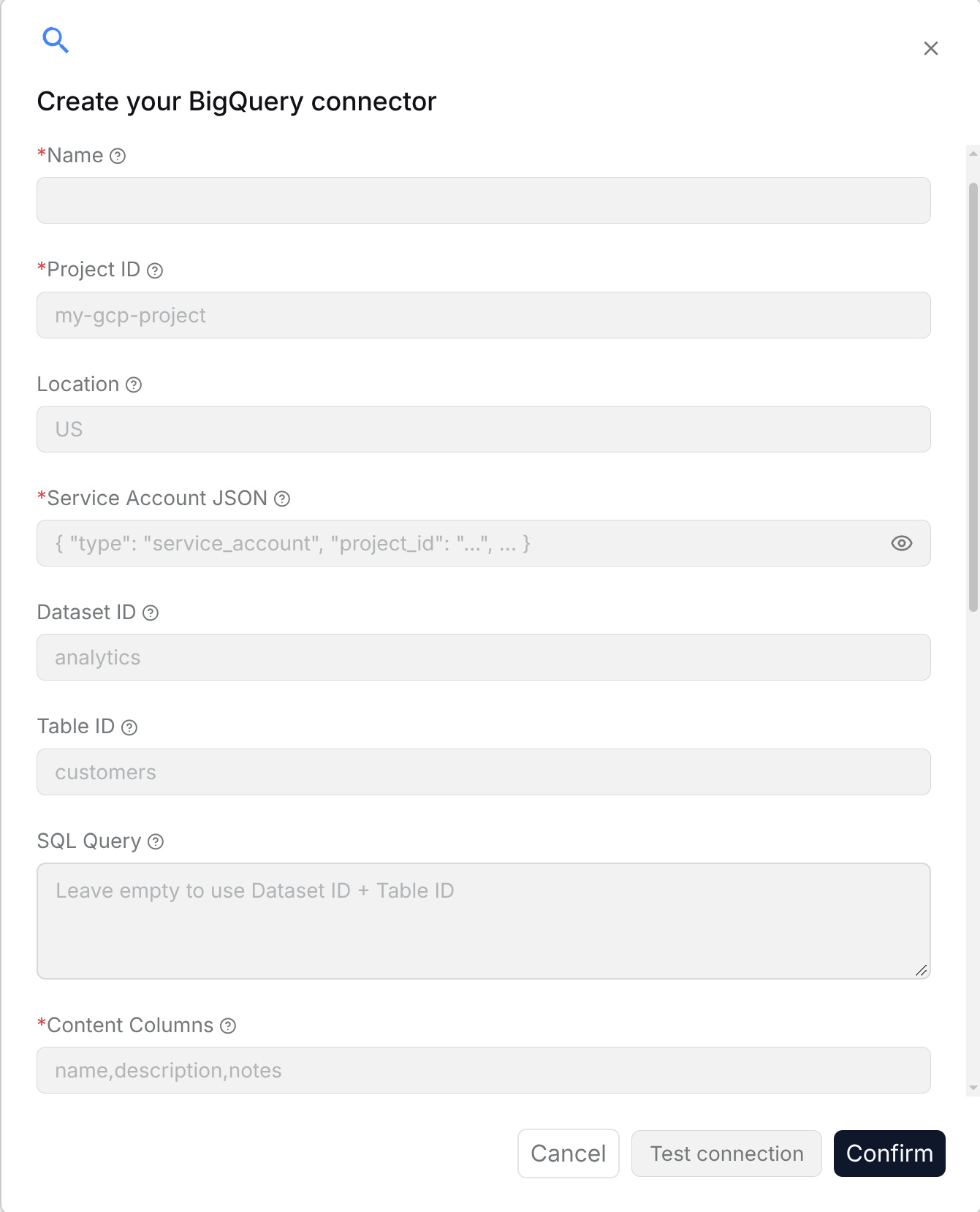
- **Name**: Enter a connection name for display in RAGFlow.
|
|
- **Project ID**: Enter the Google Cloud project ID, such as `my-gcp-project`.
|
|
- **Location**: Enter the BigQuery dataset location, such as `US` or `EU`.
|
|
- **Service Account JSON**: Paste the complete JSON key for a service account with access to the data and permission to run BigQuery jobs.
|
|
- **Dataset ID / Table ID**: Enter the source dataset and table IDs, such as `analytics` and `customers`.
|
|
- **SQL Query**: Enter a GoogleSQL query to select the source data. Leave it empty to use **Dataset ID** and **Table ID**.
|
|
- **Content Columns**: Enter comma-separated result column names to use as document text, such as `name,description,notes`. This field is required.
|
|
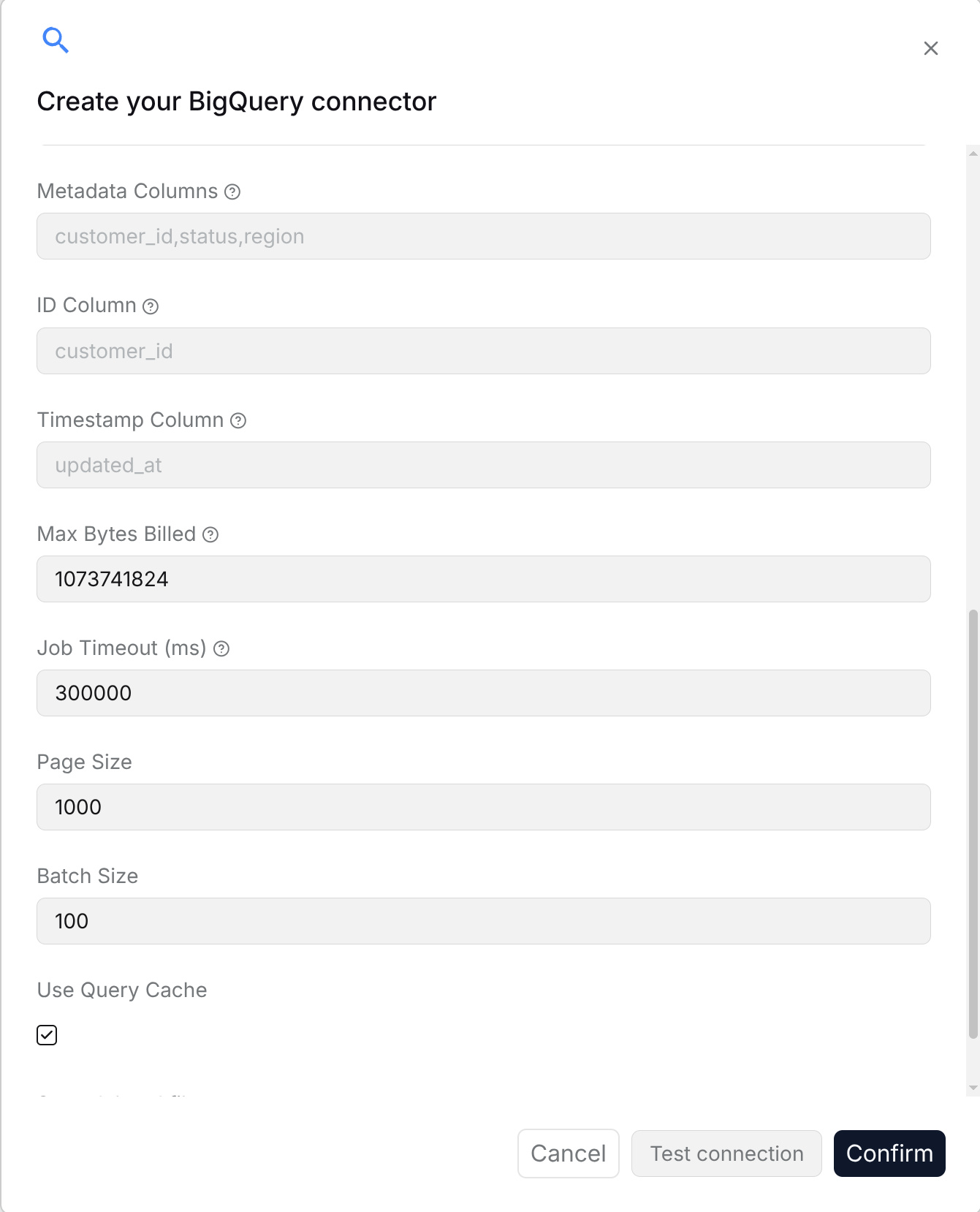
- **Metadata Columns**: Enter comma-separated result column names to store as metadata, such as `status,region`.
|
|
- **ID Column**: Enter a stable, unique record identifier, such as `customer_id`.
|
|
- **Timestamp Column**: Enter the last-update column, such as `updated_at`, for incremental synchronization.
|
|
- **Max Bytes Billed**: Enter the maximum bytes a query is allowed to bill. For example, `1073741824` is 1 GiB.
|
|
- **Job Timeout (ms)**: Enter the query job timeout in milliseconds; `300000` is 5 minutes.
|
|
- **Page Size**: Enter the number of query-result rows to fetch per page.
|
|
- **Batch Size**: Enter the number of records to process per synchronization batch.
|
|
- **Use Query Cache**: Enable this to allow BigQuery to reuse eligible cached query results.
|
|
- **Sync deleted files**: Enable this to remove synchronized documents when their source records are deleted.
|
|
|
|
Use source column names, or result aliases when using a custom query. Click **Test connection**, then **Confirm**.
|
|
|
|
|
|
|
|
|
|
|
|
## GitHub
|
|
|
|
The GitHub data source is used to synchronize issues and pull requests in GitHub repositories to a RAGFlow Dataset. After configuration, open-source project materials, development discussions, and issue handling records can be queried.
|
|
|
|
**Requirements**: Use a GitHub token with read access to the target repositories, issues, and pull requests. Ensure the token is authorized for private organization repositories when applicable.
|
|
|
|
**Configuration parameters**:
|
|
|
|
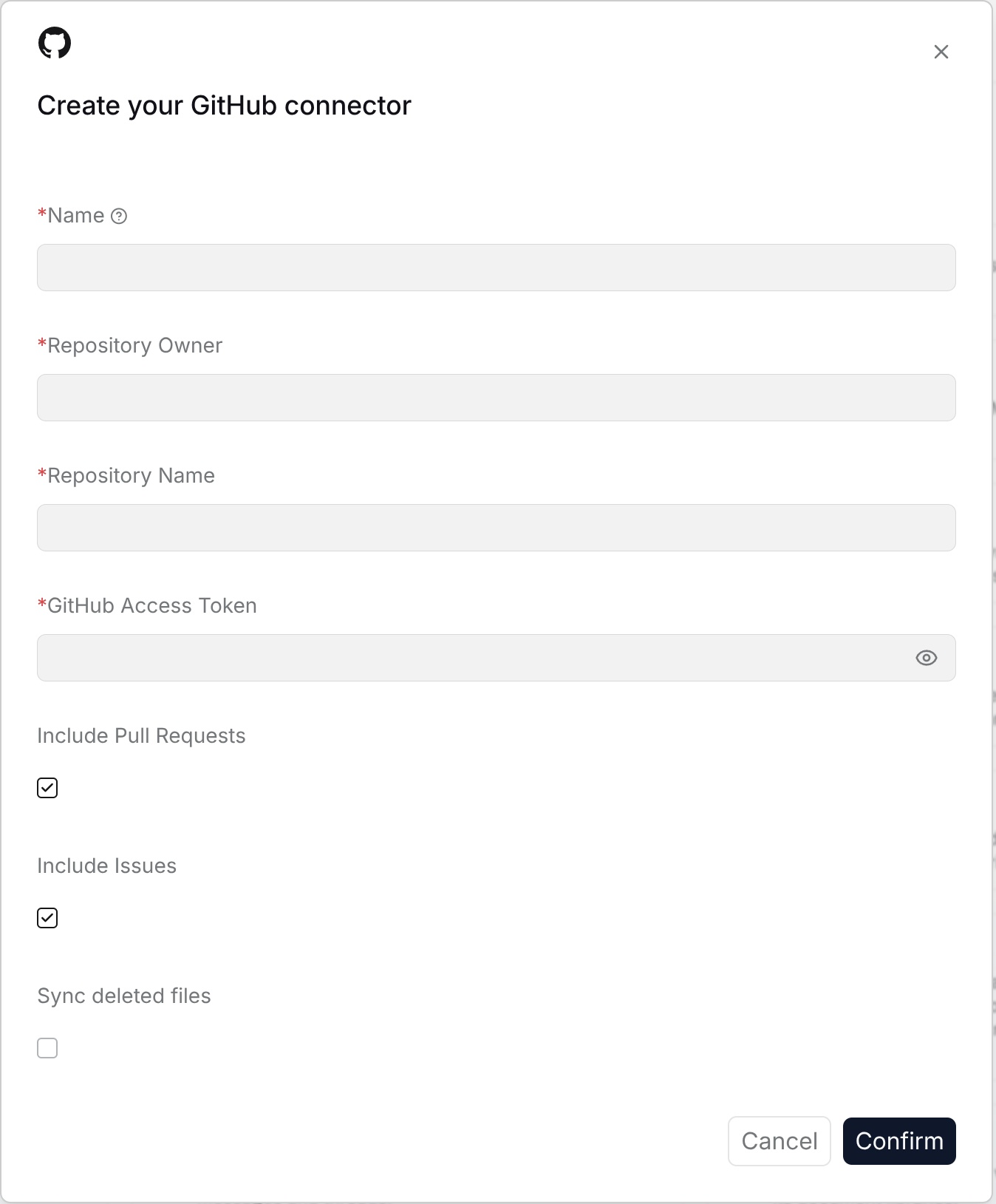
- **Name**: Customize the name in RAGFlow to identify this GitHub connection.
|
|
- **Repository owner**: Fill in the GitHub repository owner.
|
|
- **Repository name**: Fill in the GitHub repository name.
|
|
- **GitHub access token**: Fill in the GitHub access token.
|
|
- **Include Pull Requests**: Select whether to synchronize pull requests.
|
|
- **Include Issues**: Select whether to synchronize issues.
|
|
- **Sync deleted files**: After this is enabled, content deleted from the external system is removed from the Dataset index.
|
|
|
|
|
|
|
|
## GitLab
|
|
|
|
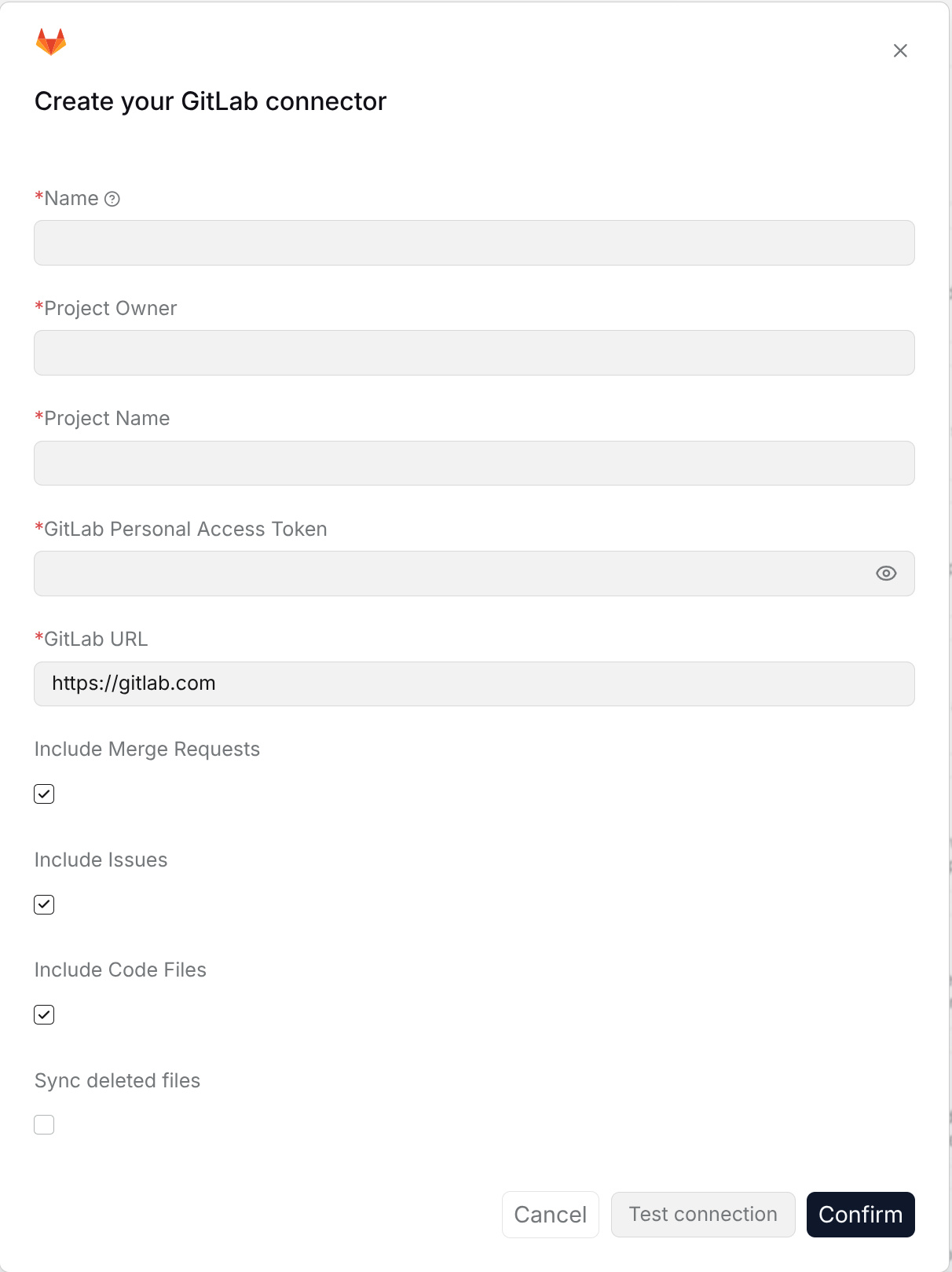
The GitLab data source is used to synchronize GitLab repositories, issues, merge requests, and code files to a RAGFlow Dataset. After configuration, project development records and code-related knowledge can be queried in a unified way.
|
|
|
|
**Requirements**: Use a GitLab access token with read access to the target project, issues, merge requests, and repository files.
|
|
|
|
**Configuration parameters**:
|
|
|
|
- **Name**: Enter a connection name for display in RAGFlow.
|
|
- **Project Owner**: Enter the user or group namespace that owns the project. Include subgroups when applicable, such as `my-group/my-subgroup`.
|
|
- **Project Name**: Enter the project path name. For `my-group/my-project`, use `my-group` as **Project Owner** and `my-project` as **Project Name**.
|
|
- **GitLab Personal Access Token**: Enter a token with read access to the selected project content.
|
|
- **GitLab URL**: Enter the GitLab instance base URL, such as `https://gitlab.com` or your self-hosted address.
|
|
- **Include Merge Requests**: Enable this to synchronize merge requests.
|
|
- **Include Issues**: Enable this to synchronize issues.
|
|
- **Include Code Files**: Enable this to synchronize repository source files.
|
|
- **Sync deleted files**: Enable this to remove synchronized content deleted from GitLab.
|
|
|
|
Select the content types you need, click **Test connection**, then **Confirm**.
|
|
|
|
|
|
|
|
## Bitbucket
|
|
|
|
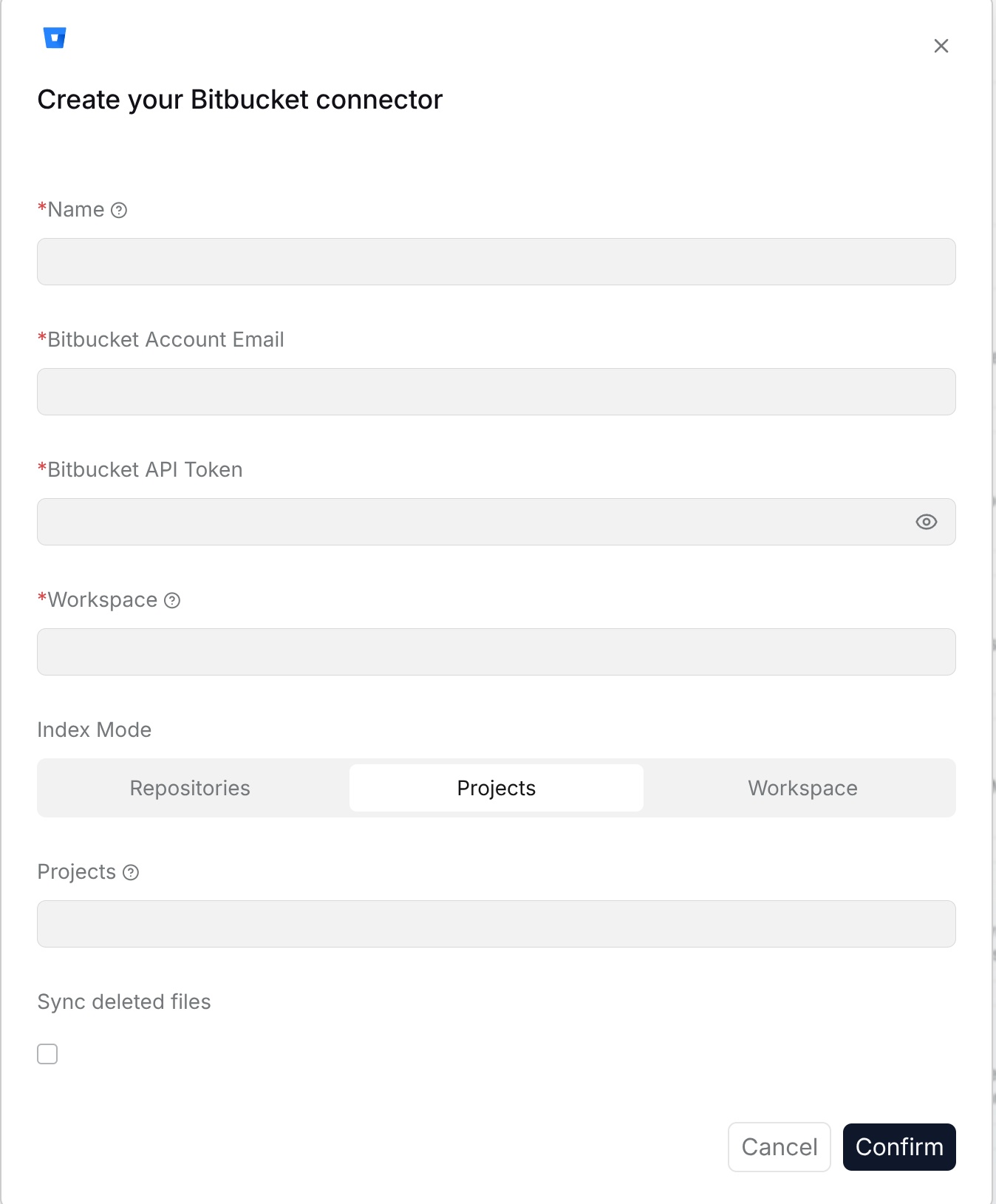
The Bitbucket data source is used to synchronize Bitbucket repository content, issues, and pull requests to a RAGFlow Dataset. After configuration, team code collaboration records can be queried.
|
|
|
|
**Requirements**: Use Bitbucket credentials with read access to the target workspace and repositories, including private repositories to synchronize.
|
|
|
|
**Configuration parameters**:
|
|
|
|
- **Name**: Customize the name in RAGFlow to identify this Bitbucket connection.
|
|
- **Workspace**: Fill in the Bitbucket workspace name.
|
|
- **Repository slug**: Fill in the Bitbucket repository identifier.
|
|
- **Username**: Fill in the Bitbucket username.
|
|
- **App password or access token**: Fill in the credential used to access Bitbucket.
|
|
- **Include pull requests**: Select whether to synchronize pull requests.
|
|
- **Include issues**: Select whether to synchronize issues.
|
|
- **Sync deleted files**: After this is enabled, content deleted from the external system is removed from the Dataset index.
|
|
|
|
|
|
|
|
## Azure DevOps
|
|
|
|
The Azure DevOps data source is used to synchronize Azure Repos source files and pull requests to a RAGFlow Dataset. After configuration, repository content and code review history can be queried.
|
|
|
|
**Requirements**: Use a personal access token (PAT) with **Code (Read)** access to the target organization. Azure DevOps Services (`dev.azure.com`) and self-hosted Azure DevOps Server are supported. For a self-hosted server, provide its service or collection URL. Use HTTPS to protect your credentials.
|
|
|
|
**Configuration parameters**:
|
|
|
|
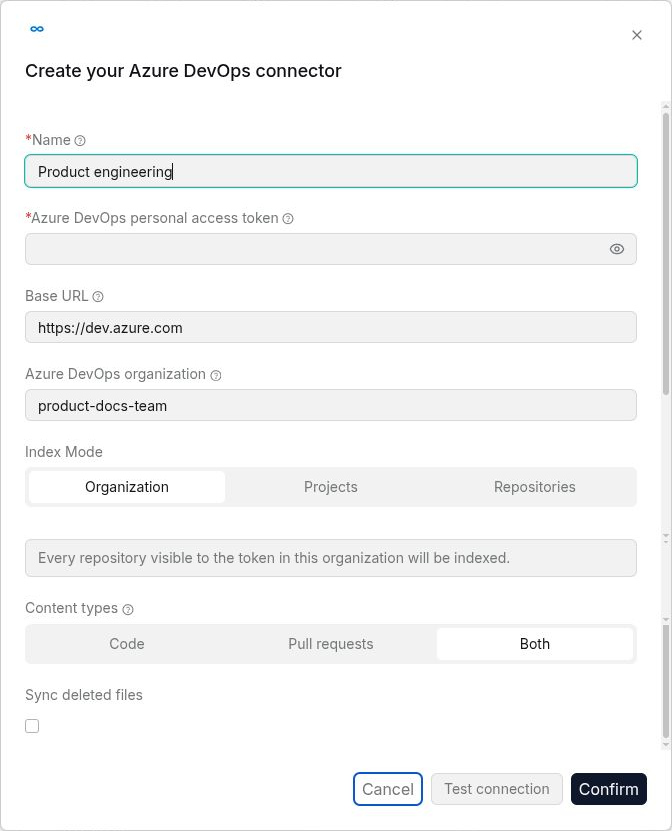
- **Name**: Customize the name in RAGFlow to identify this Azure DevOps connection.
|
|
- **Azure DevOps personal access token**: The PAT used to access the organization.
|
|
- **Base URL**: For Azure DevOps Services, this is optional when an organization name is provided and defaults to `https://dev.azure.com`. For self-hosted Azure DevOps Server, provide the service URL here, or provide the full collection URL under **Azure DevOps organization**. If the organization field is empty, Base URL must include the collection path, for example `https://tfs.contoso.com/DefaultCollection`.
|
|
- **Azure DevOps organization**: Enter the hosted organization name, the collection name to append to Base URL, or a full self-hosted collection URL. Leave it empty only when Base URL already includes the collection path. Explicit URLs must use `http://` or `https://`, include a valid host, and contain no query parameters, fragments, or embedded credentials. The same URL restrictions apply to Base URL.
|
|
- **Index Mode**: Choose **Organization**, **Projects**, or **Repositories**. Organization indexes every repository visible to the token in the organization; the other modes show fields for narrowing the scope.
|
|
- **Projects**: Comma separated team project names, used when indexing by project.
|
|
- **Repositories**: Comma separated repositories, used when indexing by repository. Use `project/repo` to disambiguate repositories that share a name across projects.
|
|
- **Content types**: Choose whether to index source files, pull requests, or both.
|
|
|
|
Pull request descriptions are re-fetched individually when they reach the 400-character limit imposed by the list endpoint, so long descriptions are indexed in full. Completed and abandoned pull requests are filtered by their close date; active ones are always re-indexed because Azure DevOps exposes no dependable "last updated" timestamp for them.
|
|
- **Sync deleted files**: After this is enabled, content deleted from the external system is removed from the Dataset index.
|
|
|
|
Build output and vendored directories such as `node_modules`, `bin`, `obj`, `dist`, and `vendor` are skipped, along with binary files and files larger than 1 MB.
|
|
|
|
|
|
|
|
## Jira
|
|
|
|
The Jira data source is used to synchronize issues, comments, and project records in Jira to a RAGFlow Dataset. After configuration, project tasks, requirements, bugs, and handling records can be queried.
|
|
|
|
**Requirements**: Use a Jira account or API token with read access to the target project and issues. Select the mode that matches your Jira Cloud or Server deployment.
|
|
|
|
**Configuration parameters**:
|
|
|
|
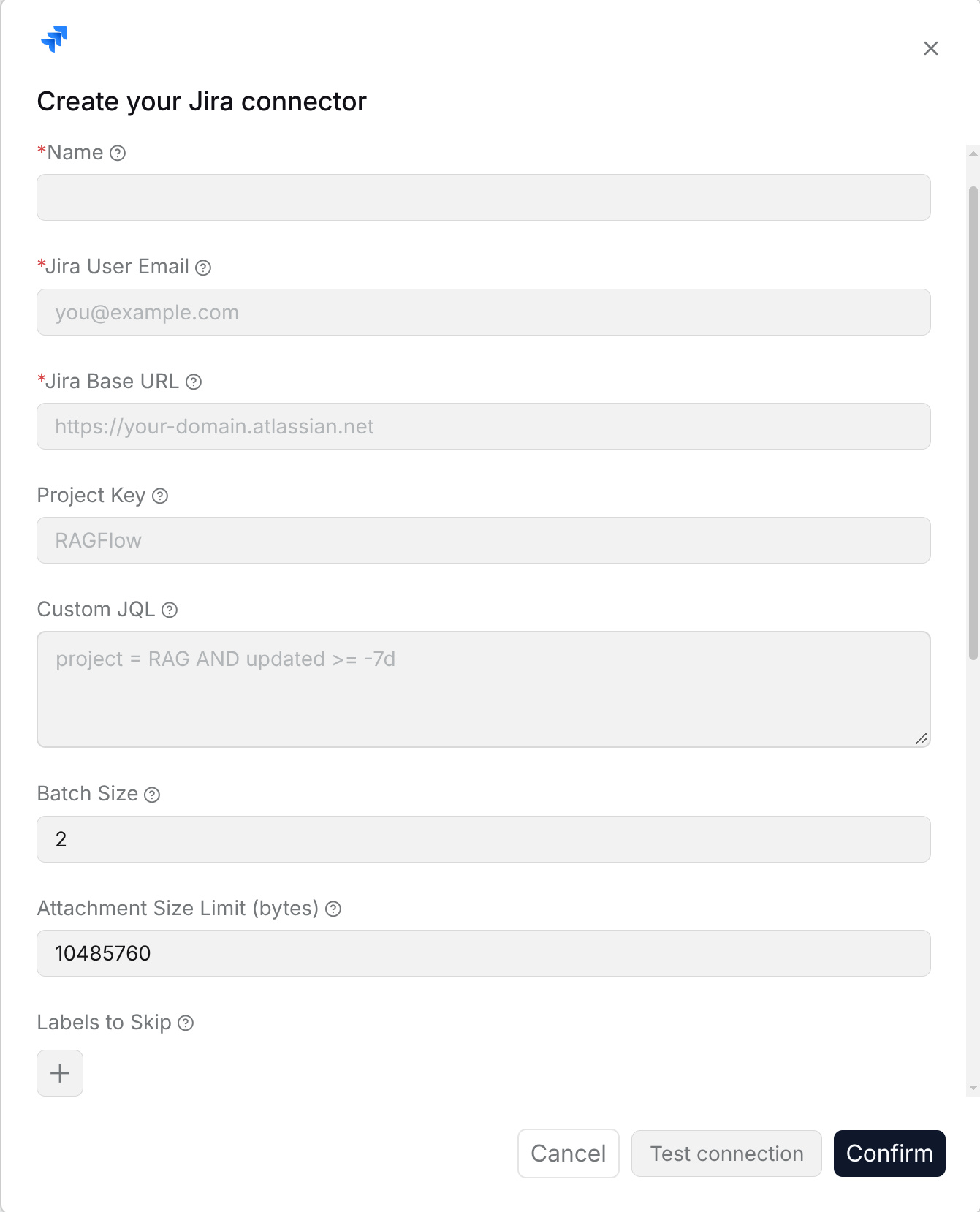
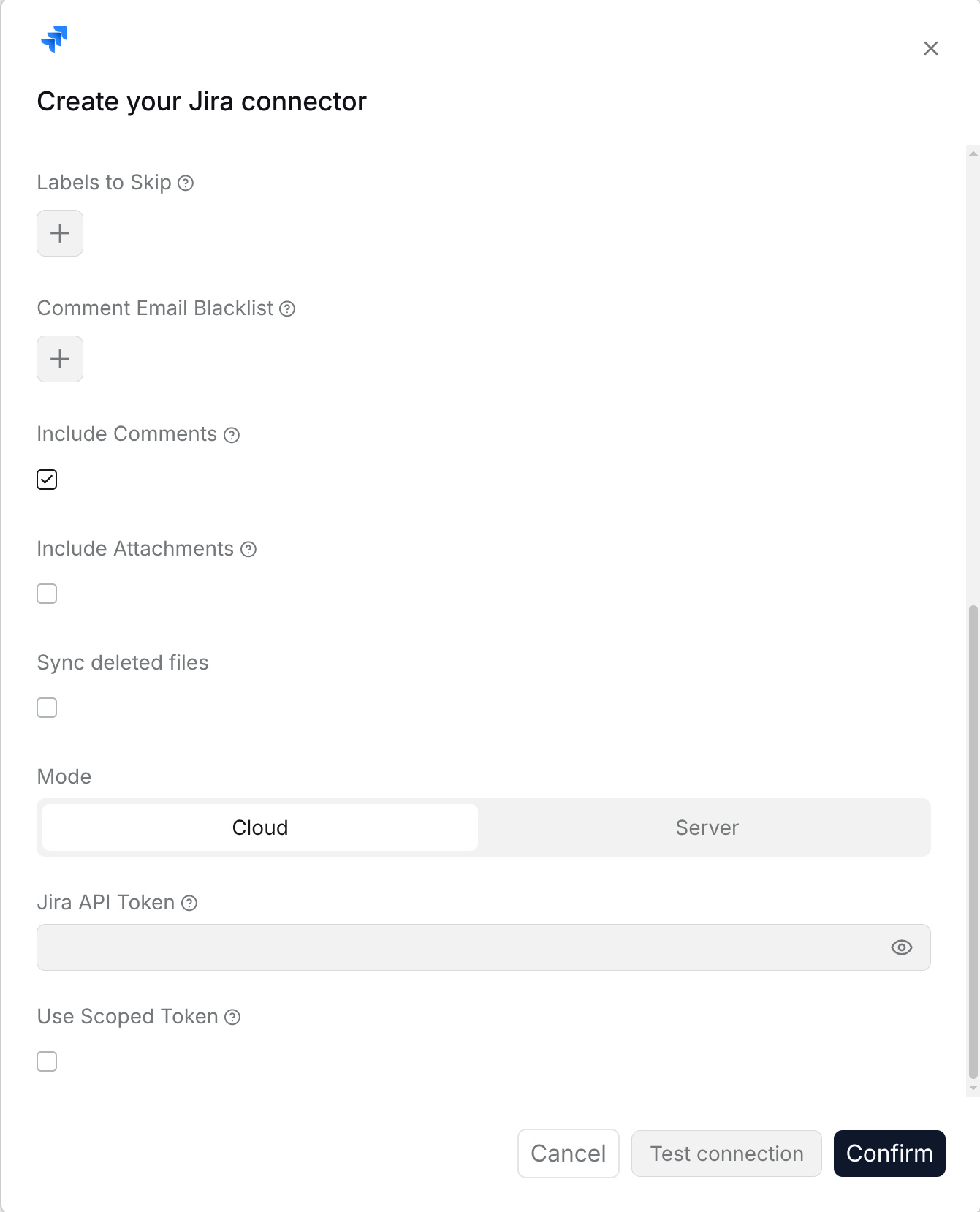
- **Name**: Enter a connection name for display in RAGFlow.
|
|
- **Mode**: Select **Cloud** for Jira Cloud or **Server** for Jira Server / Data Center.
|
|
- **Jira User Email / Jira Username**: In Cloud mode, enter the account email. In Server mode, enter the Jira username.
|
|
- **Jira Base URL**: Enter the Jira site address, such as `https://your-domain.atlassian.net`, without an issue-specific path.
|
|
- **Jira API Token / Jira Password**: In Cloud mode, enter the account's API token. In Server mode, enter its password.
|
|
- **Use Scoped Token**: In Cloud mode, enable this only when the API token was created with explicit scopes.
|
|
- **Project Key**: Enter the project key, such as `RAG`, to restrict synchronization to that project.
|
|
- **Custom JQL**: Enter a complete filter, such as `project = RAG AND updated >= -7d`. When provided, this replaces the **Project Key** filter; include the project condition here if needed.
|
|
- **Batch Size**: Enter a positive number of issues to fetch per batch.
|
|
- **Attachment Size Limit (bytes)**: Enter the maximum attachment size to download; `10485760` is 10 MiB.
|
|
- **Labels to Skip**: Use **+** to add labels. Issues carrying a listed label are excluded.
|
|
- **Comment Email Blacklist**: Use **+** to add author email addresses whose comments should be excluded.
|
|
- **Include Comments**: Enable this to include issue comments.
|
|
- **Include Attachments**: Enable this to download issue attachments within the configured size limit.
|
|
- **Sync deleted files**: Enable this to remove synchronized content deleted from Jira.
|
|
|
|
Click **Test connection** to check the account and site settings, then **Confirm**.
|
|
|
|
|
|
|
|
|
|
|
|
## Asana
|
|
|
|
The Asana data source is used to synchronize tasks, projects, and comments in Asana to a RAGFlow Dataset. After configuration, team task records and project progress can be queried.
|
|
|
|
**Requirements**: Use an Asana API token with read access to the target workspace, projects, and tasks.
|
|
|
|
**Configuration parameters**:
|
|
|
|
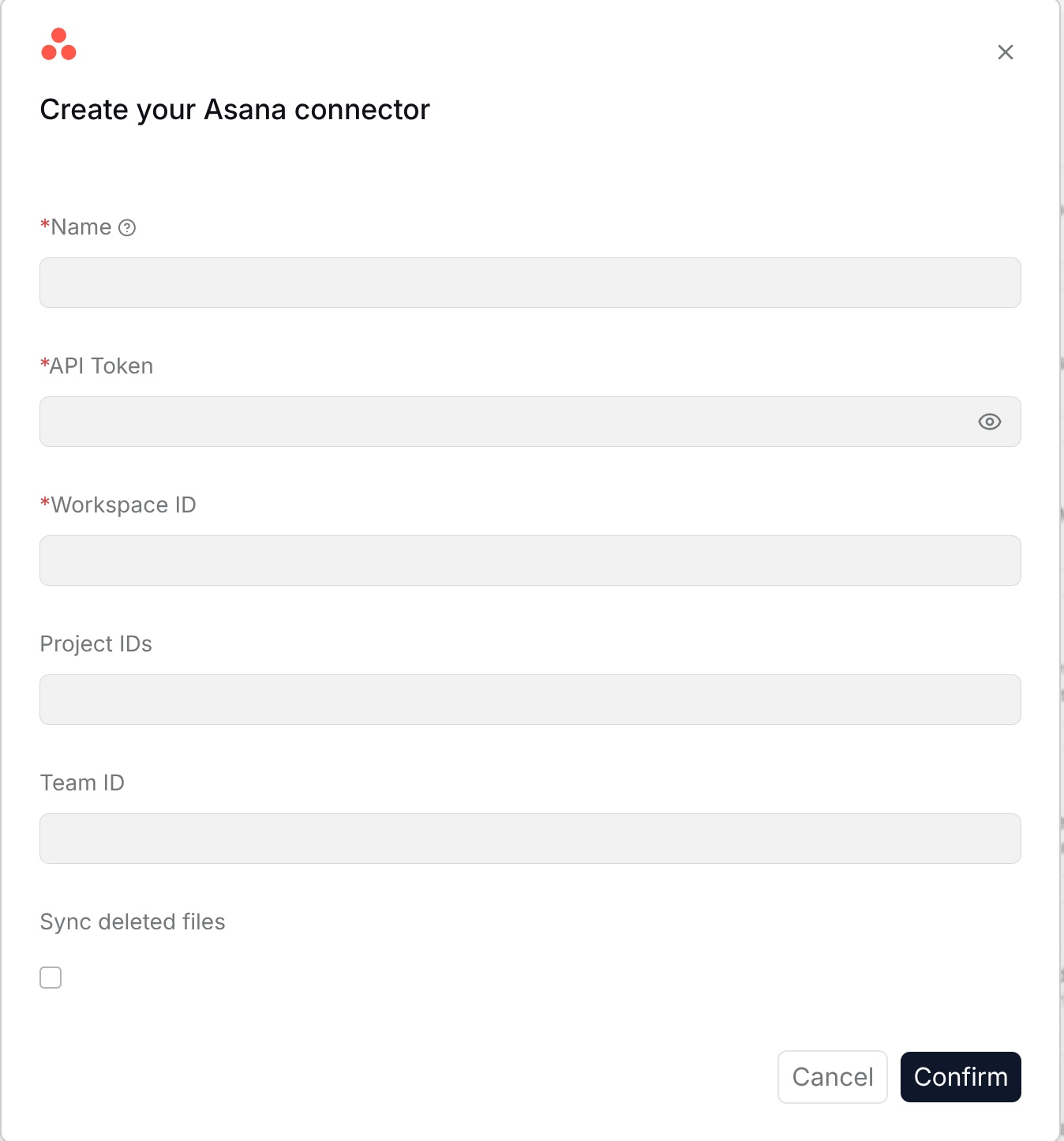
- **Name**: Enter a name for the connection.
|
|
- **API Token**: Enter an Asana token with access to the target workspace.
|
|
- **Workspace ID**: Enter the workspace to synchronize.
|
|
- **Project IDs**: Optionally specify the projects to synchronize.
|
|
- **Team ID**: Optionally specify a team to limit the synchronization scope.
|
|
- **Sync deleted files**: Enable to remove source content deleted from Asana during synchronization.
|
|
|
|
Click **Test connection** to check the completed settings, then **Confirm** to create the connection.
|
|
|
|
|
|
|
|
## Gmail
|
|
|
|
The Gmail data source is used to synchronize Gmail email content to a RAGFlow Dataset. After configuration, customer service emails, business correspondence, and historical communication records can be queried and reused.
|
|
|
|
**Requirements**: For a Google Workspace domain, use an administrator email and OAuth credentials authorized for Gmail and Admin Directory read access. For a single mailbox, use that mailbox address and its OAuth token JSON, including a refresh token, client ID, and client secret.
|
|
|
|
**Configuration parameters**:
|
|
|
|
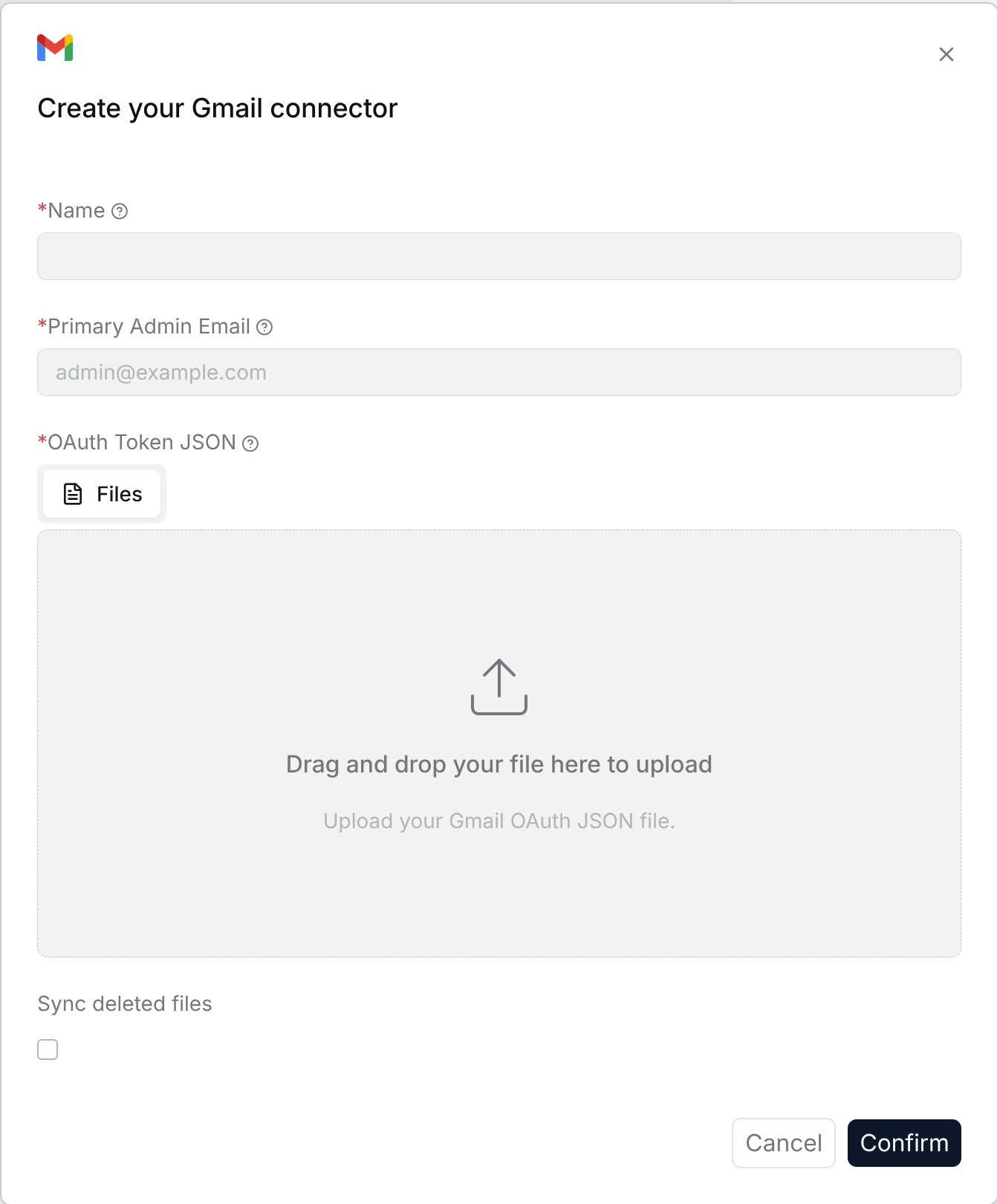
- **Name**: Enter a name for the connection.
|
|
- **Primary Admin Email**: Enter the Google Workspace administrator email, or the mailbox address for a single-account connection.
|
|
- **OAuth Token JSON**: Upload the Gmail OAuth JSON file for the account.
|
|
- **Sync deleted files**: Enable to remove emails deleted from Gmail during synchronization.
|
|
|
|
Click **Test connection** to check the completed settings, then **Confirm** to create the connection.
|
|
|
|
|
|
|
|
## Outlook
|
|
|
|
The Outlook data source is used to synchronize Outlook mailbox emails to a RAGFlow Dataset. After configuration, business emails and communication records in Microsoft 365 can be queried.
|
|
|
|
**Requirements**: Use a Microsoft 365 organization account and application authorization with read access to the target mailboxes.
|
|
|
|
**Configuration parameters**:
|
|
|
|
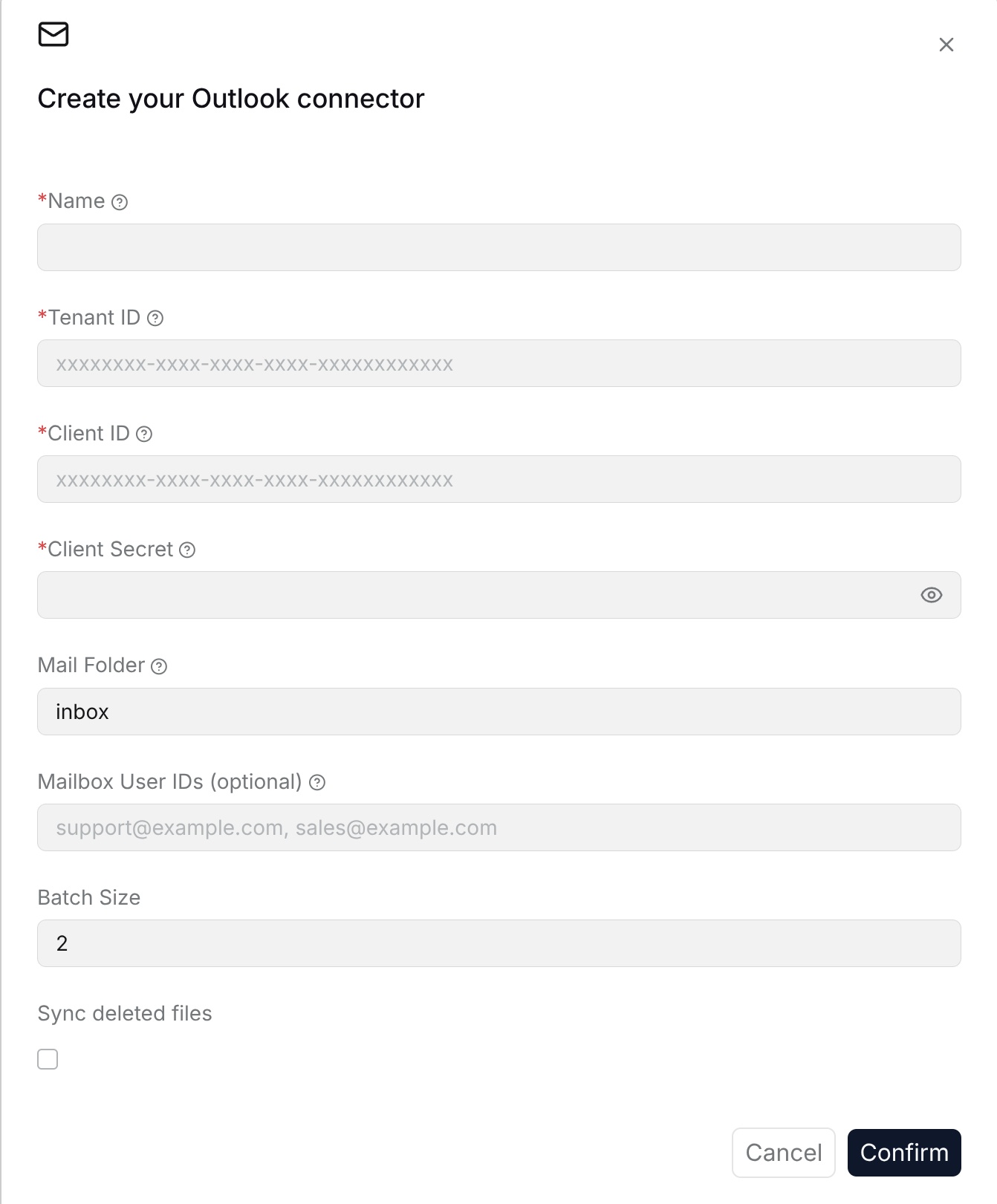
- **Name**: Customize the name in RAGFlow to identify this Outlook connection.
|
|
- **Tenant ID**: Fill in the Microsoft Entra ID tenant ID.
|
|
- **Client ID**: Fill in the client ID from the app registration.
|
|
- **Client secret**: Fill in the client secret from the app registration.
|
|
- **Mailbox address**: Fill in the mailbox address that needs to be synchronized.
|
|
- **Folder**: Fill in the mail folder that needs to be synchronized.
|
|
- **Batch size**: Set the number of emails processed in each batch.
|
|
- **Sync deleted files**: After this is enabled, emails deleted from the external system are removed from the Dataset index.
|
|
|
|
|
|
|
|
## IMAP
|
|
|
|
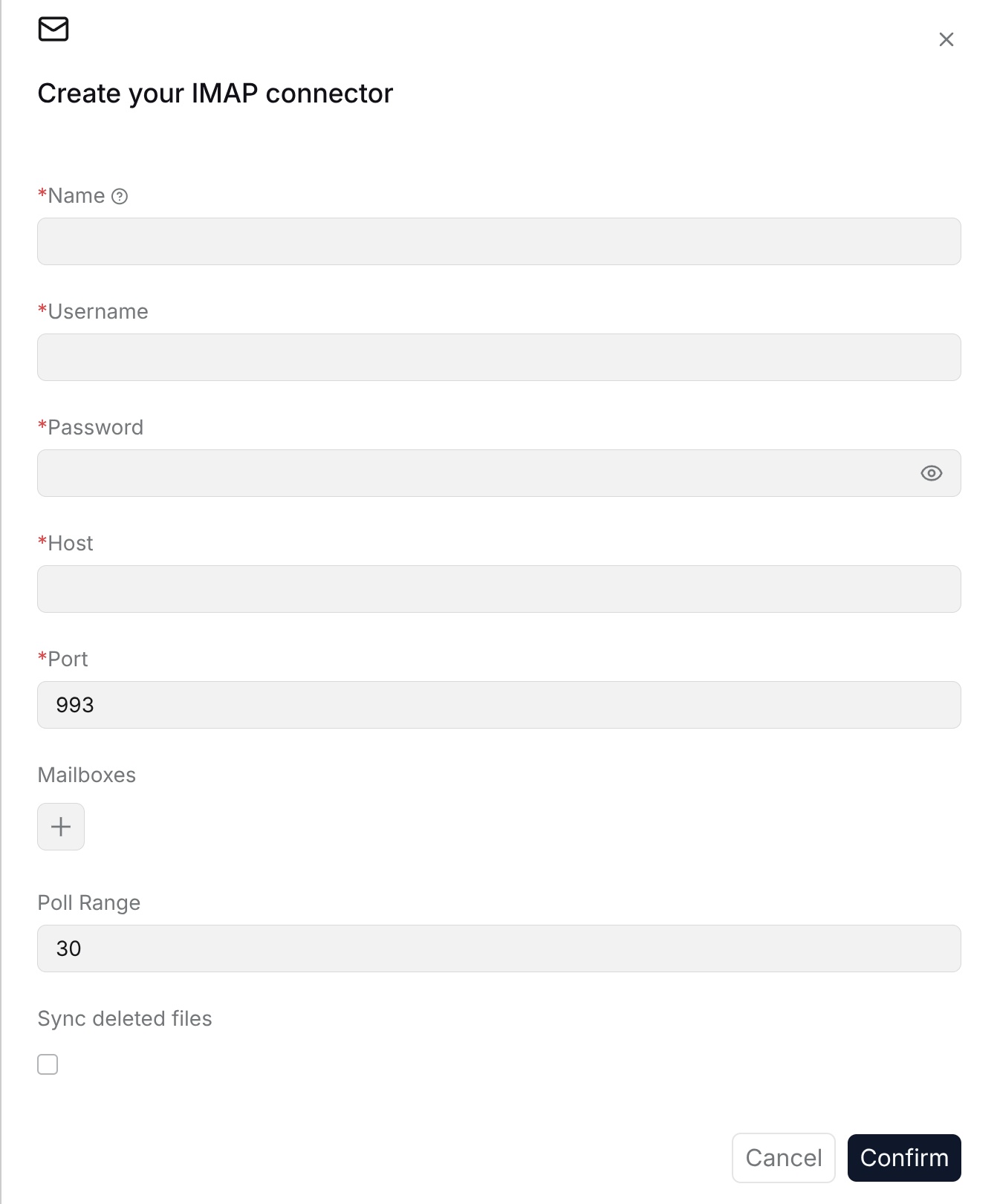
The IMAP data source is used to synchronize email content in mail services that support the IMAP protocol to a RAGFlow Dataset. After configuration, mailboxes that are not covered by standard email connectors can also be included in Dataset retrieval.
|
|
|
|
**Requirements**: Enable IMAP for the mailbox and use an account with read access to the target mail folders.
|
|
|
|
**Configuration parameters**:
|
|
|
|
- **Name**: Customize the name in RAGFlow to identify this IMAP connection.
|
|
- **IMAP server**: Fill in the IMAP server address.
|
|
- **Port**: Fill in the IMAP port.
|
|
- **Username**: Fill in the mailbox username.
|
|
- **Password or authorization code**: Fill in the mailbox password or application authorization code.
|
|
- **Mailbox folder**: Fill in the folder that needs to be synchronized.
|
|
- **SSL/TLS**: Select whether to enable secure connection.
|
|
- **Batch size**: Set the number of emails processed in each batch.
|
|
- **Sync deleted files**: After this is enabled, emails deleted from the external system are removed from the Dataset index.
|
|
|
|
|
|
|
|
## Microsoft Teams
|
|
|
|
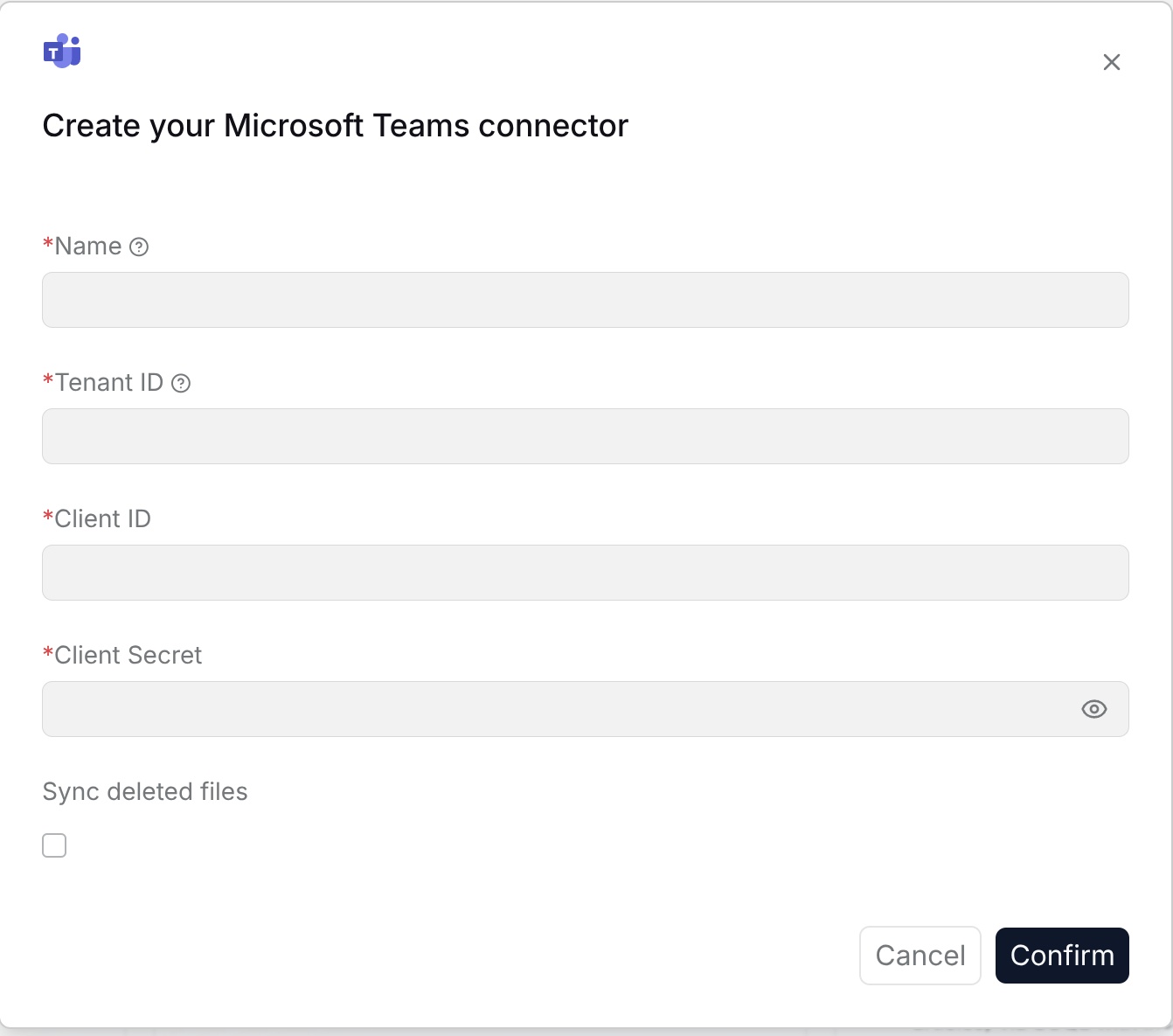
The Microsoft Teams data source is used to synchronize Teams channel messages and related collaboration records to a RAGFlow Dataset. After configuration, team discussion content can be retrieved and reused.
|
|
|
|
**Requirements**: Use a Microsoft 365 organization account and application authorization with read access to the target teams, channels, and messages.
|
|
|
|
**Configuration parameters**:
|
|
|
|
- **Name**: Customize the name in RAGFlow to identify this Microsoft Teams connection.
|
|
- **Tenant ID**: Fill in the Microsoft Entra ID tenant ID.
|
|
- **Client ID**: Fill in the client ID from the app registration.
|
|
- **Client secret**: Fill in the client secret from the app registration.
|
|
- **Team ID**: Fill in the Teams team ID that needs to be synchronized.
|
|
- **Channel ID**: Fill in the channel ID that needs to be synchronized.
|
|
- **Batch size**: Set the number of messages processed in each batch.
|
|
- **Sync deleted files**: After this is enabled, messages deleted from the external system are removed from the Dataset index.
|
|
|
|
|
|
|
|
## Slack
|
|
|
|
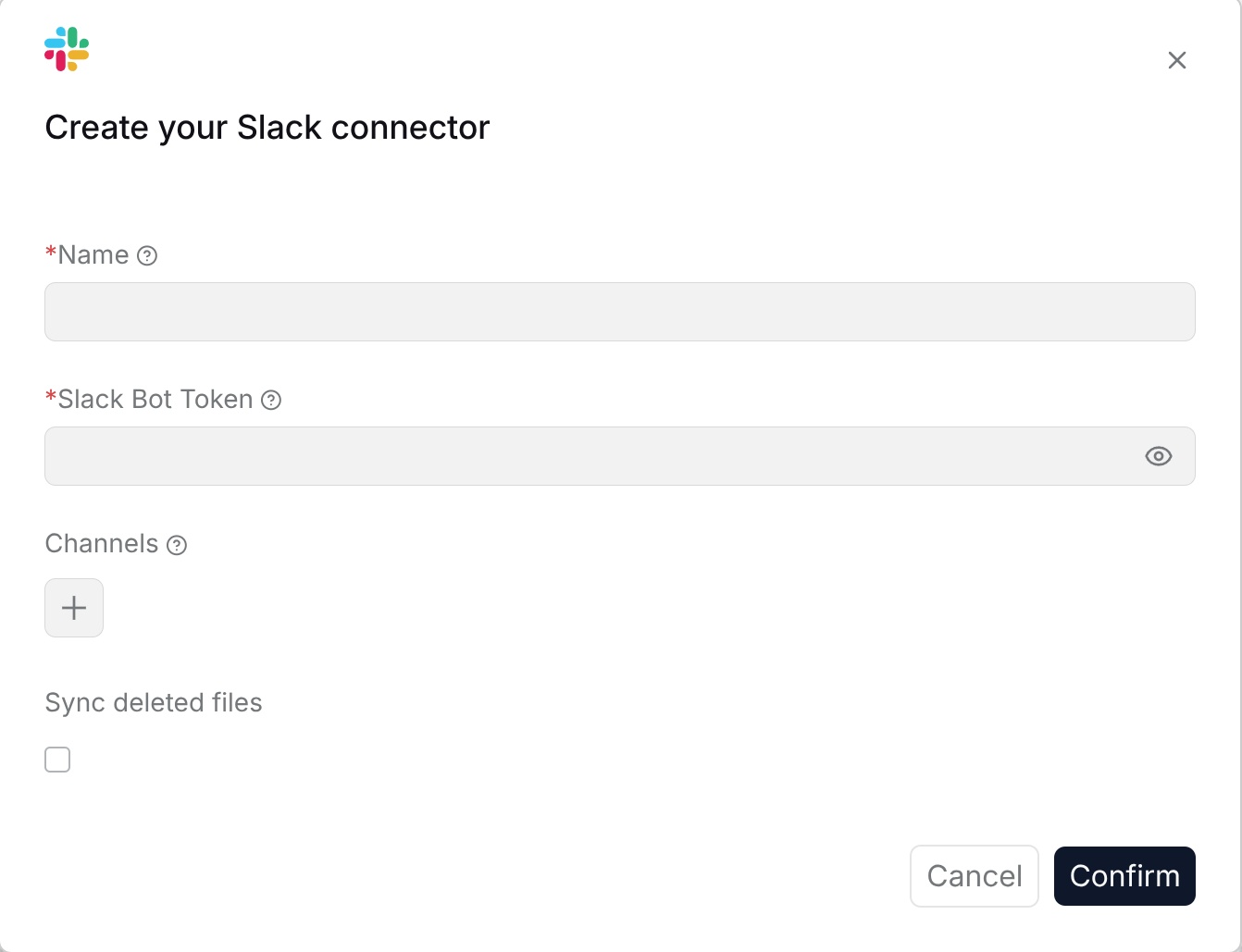
The Slack data source is used to synchronize Slack channel messages and collaboration content to a RAGFlow Dataset. After configuration, team communication records can be retrieved and queried.
|
|
|
|
**Requirements**: Use a Slack application or token with read access to the target channels. Invite the application to private channels when required.
|
|
|
|
**Configuration parameters**:
|
|
|
|
- **Name**: Customize the name in RAGFlow to identify this Slack connection.
|
|
- **Slack bot token**: Fill in the Slack bot token.
|
|
- **Workspace ID**: Fill in the Slack workspace ID.
|
|
- **Channel IDs**: Fill in the channels that need to be synchronized.
|
|
- **Batch size**: Set the number of messages processed in each batch.
|
|
- **Sync deleted files**: After this is enabled, messages deleted from the external system are removed from the Dataset index.
|
|
|
|
|
|
|
|
## Discord
|
|
|
|
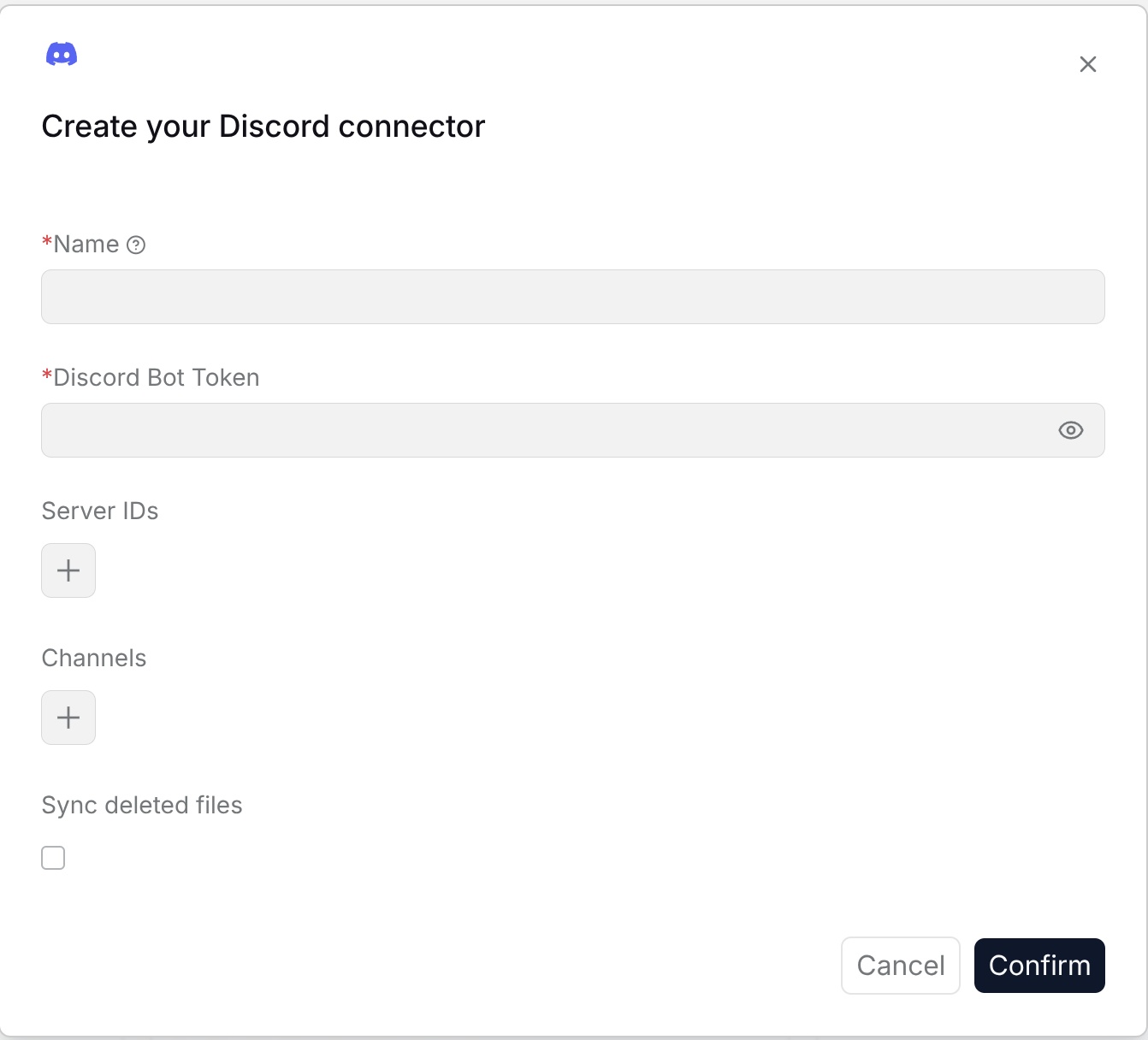
The Discord data source is used to synchronize Discord server and channel messages to a RAGFlow Dataset. After configuration, community communication records can be queried and analyzed.
|
|
|
|
**Requirements**: Add the Discord bot to the target server and grant it permission to read the channels to synchronize.
|
|
|
|
**Configuration parameters**:
|
|
|
|
- **Name**: Customize the name in RAGFlow to identify this Discord connection.
|
|
- **Discord bot token**: Fill in the Discord bot access token.
|
|
- **Server IDs**: Fill in the list of Discord server IDs that need to be synchronized.
|
|
- **Channels**: Fill in the Discord channel IDs or channel names that need to be synchronized.
|
|
- **Batch size**: Set the number of messages processed in each batch.
|
|
- **Sync deleted files**: After this is enabled, messages deleted from the external system are removed from the Dataset index.
|
|
|
|
|
|
|
|
## Dingtalk AI Table
|
|
|
|
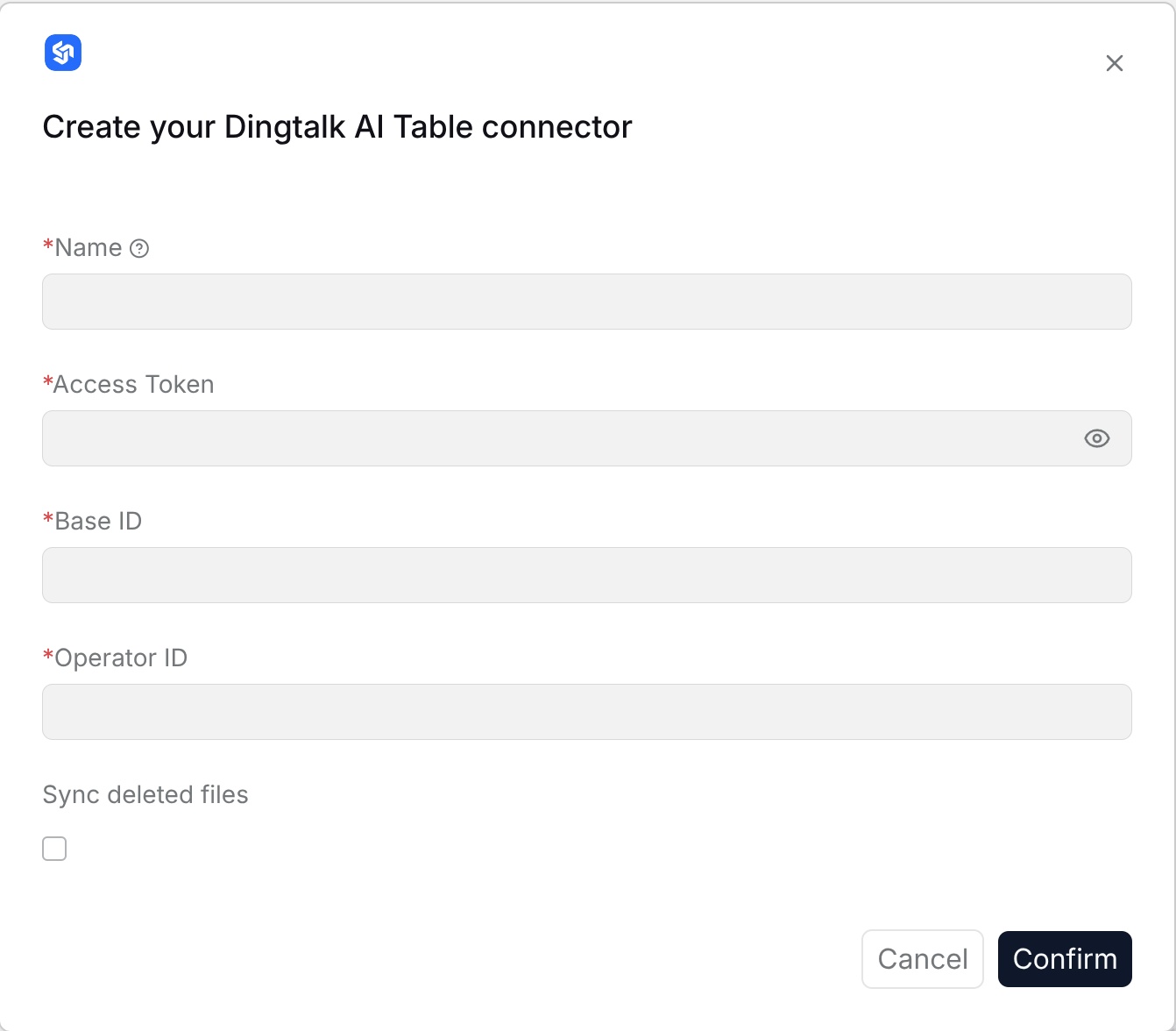
The Dingtalk AI Table data source is used to synchronize records in Dingtalk AI Table to a RAGFlow Dataset. After configuration, online table records, business ledgers, and collaborative data can be queried.
|
|
|
|
**Requirements**: Use Dingtalk organization credentials authorized to read the target AI Table.
|
|
|
|
**Configuration parameters**:
|
|
|
|
- **Name**: Customize the name in RAGFlow to identify this Dingtalk AI Table connection.
|
|
- **Application key**: Fill in the Dingtalk application key.
|
|
- **Application secret**: Fill in the Dingtalk application secret.
|
|
- **Table ID**: Fill in the AI Table ID that needs to be synchronized.
|
|
- **View ID**: Fill in the view ID that needs to be synchronized.
|
|
- **Content field**: Select the field to be written as document content.
|
|
- **Metadata field**: Select the field to be written as metadata.
|
|
- **Sync deleted files**: After this is enabled, deleted records are removed from the Dataset index.
|
|
|
|
|
|
|
|
## Zendesk
|
|
|
|
The Zendesk data source is used to synchronize Zendesk tickets, comments, and help center articles to a RAGFlow Dataset. After configuration, customer service records and support knowledge can be queried in a unified way.
|
|
|
|
**Requirements**: Use Zendesk credentials with read access to the tickets or help center articles selected for synchronization.
|
|
|
|
**Configuration parameters**:
|
|
|
|
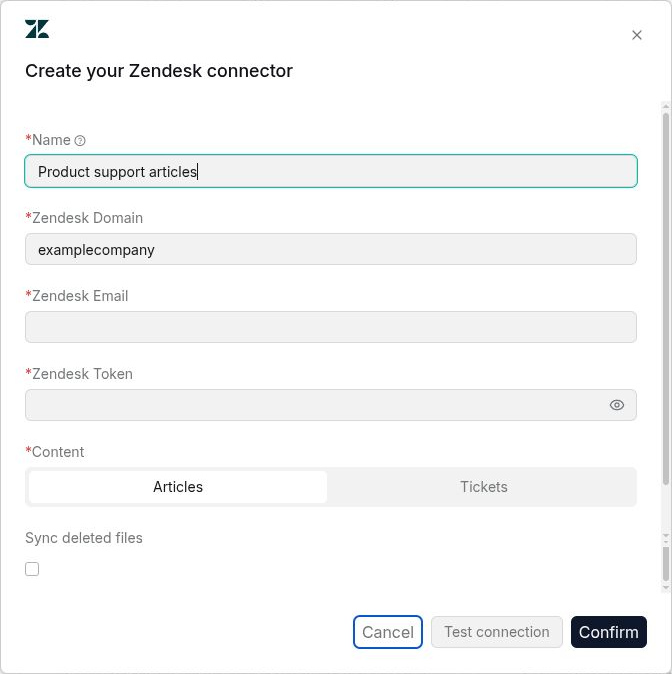
- **Name**: Enter a name for the connection.
|
|
- **Zendesk Domain**: Enter the Zendesk domain for your account.
|
|
- **Zendesk Email**: Enter the email address used to access Zendesk.
|
|
- **Zendesk Token**: Enter the API token.
|
|
- **Content**: Select **Articles** or **Tickets**.
|
|
- **Sync deleted files**: Enable to remove source content deleted from Zendesk during synchronization.
|
|
|
|
Click **Test connection** to check the completed settings, then **Confirm** to create the connection.
|
|
|
|
|
|
|
|
## Moodle
|
|
|
|
The Moodle data source is used to synchronize course content, forums, resources, and learning records in Moodle to a RAGFlow Dataset. After configuration, course materials and teaching records can be queried.
|
|
|
|
**Requirements**: Use a Moodle account or API token with read access to the target courses, activities, and resources.
|
|
|
|
**Configuration parameters**:
|
|
|
|
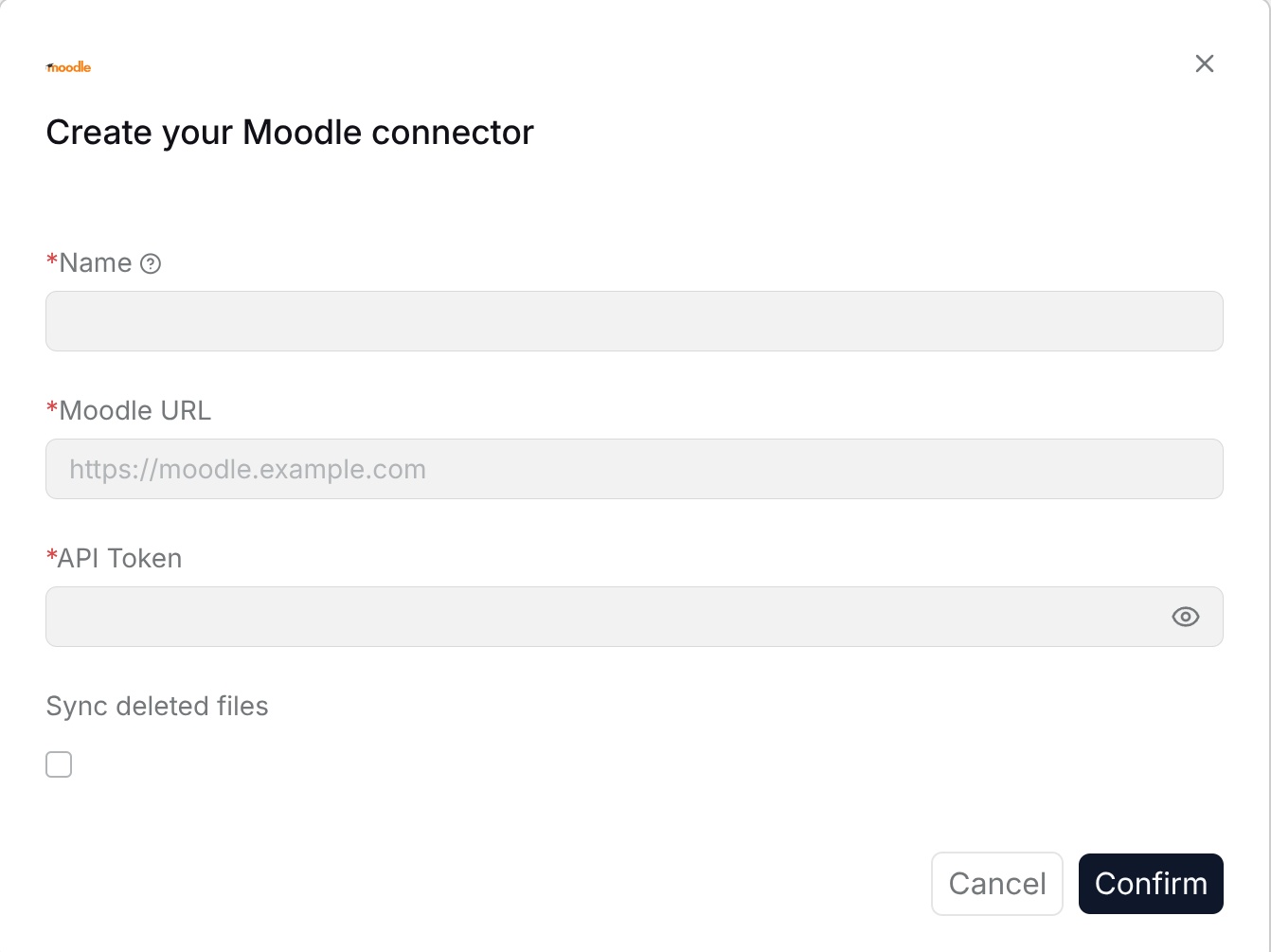
- **Name**: Customize the name in RAGFlow to identify this Moodle connection.
|
|
- **Moodle site URL**: Fill in the Moodle service address.
|
|
- **Access token**: Fill in the Moodle access token.
|
|
- **Course ID**: Fill in the course ID that needs to be synchronized.
|
|
- **Synchronization scope**: Select course resources, forums, assignments, or other content.
|
|
- **Batch size**: Set the number of records processed in each batch.
|
|
- **Sync deleted files**: After this is enabled, content deleted from the external system is removed from the Dataset index.
|
|
|
|
|
|
|
|
## REST API
|
|
|
|
The REST API data source is used to synchronize data returned by custom business APIs to a RAGFlow Dataset. After configuration, records in internal systems or third-party systems can enter the Dataset according to the API structure.
|
|
|
|
**Requirements**: The API must be reachable from the RAGFlow server. Provide credentials with read access and a response structure that matches the configured content and pagination settings.
|
|
|
|
**Configuration parameters**:
|
|
|
|
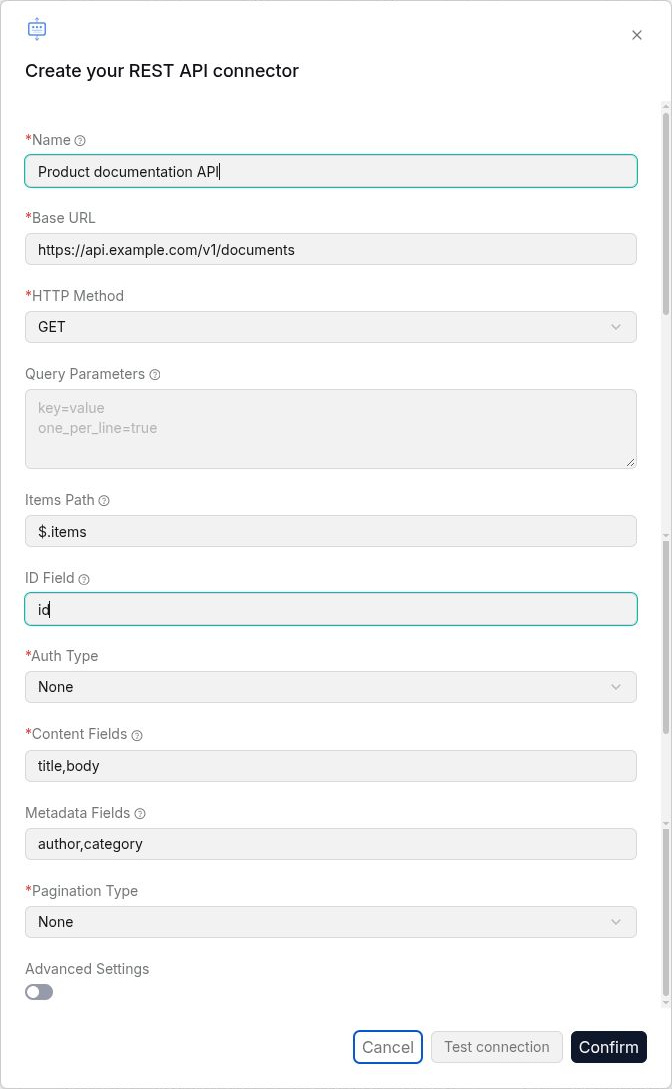
- **Name**: Enter a name for the connection.
|
|
- **Base URL**: Enter the API endpoint.
|
|
- **HTTP Method**: Select the request method.
|
|
- **Query Parameters**: Enter query parameters as `key=value`, one per line.
|
|
- **Items Path**: Specify the path to the records in the response, such as `$.items`.
|
|
- **ID Field**: Specify the field that uniquely identifies each record.
|
|
- **Auth Type**: Select the authentication method and complete the fields that appear.
|
|
- **Content Fields**: Specify the fields to use as document content.
|
|
- **Metadata Fields**: Specify the fields to retain as metadata.
|
|
- **Pagination Type**: Select the pagination method and complete its settings.
|
|
- **Advanced Settings**: Enable to configure additional request settings.
|
|
|
|
Click **Test connection** to check the completed settings, then **Confirm** to create the connection.
|
|
|
|
|
|
|
|
## Xquik
|
|
|
|
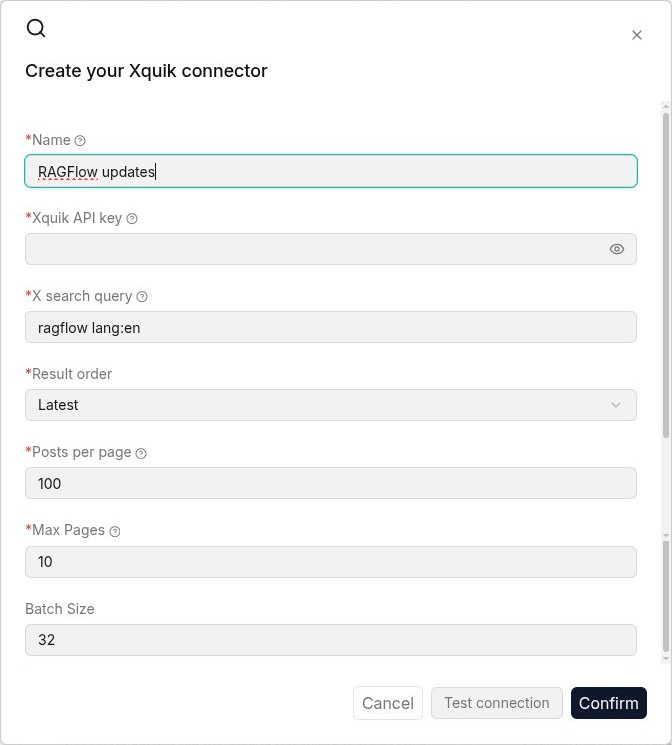
The Xquik data source searches public X posts and syncs each matching post into a RAGFlow Dataset. Use it to retrieve posts by keyword, hashtag, author, language, or another supported X search operator.
|
|
|
|
**Requirements**: Create an [Xquik API key](https://docs.xquik.com/api-reference/authentication) with access to the Search Tweets API. Each returned post uses 1 Xquik credit. The page size and maximum page count limit each synchronization. Xquik is an independent third-party service.
|
|
|
|
**Configuration parameters**:
|
|
|
|
- **Name**: Choose a name for this connection.
|
|
- **Xquik API key**: Enter the key in the password field.
|
|
- **X search query**: Enter keywords, hashtags, or operators such as `from:username`.
|
|
- **Result order**: Select **Latest** for chronological results or **Top** for ranked results.
|
|
- **Posts per page**: Set the maximum posts requested per API page.
|
|
- **Max pages**: Stop each sync after this many pages.
|
|
- **Batch size**: Set the number of posts sent to RAGFlow per batch.
|
|
|
|
RAGFlow sends each incremental sync window to Xquik as inclusive `sinceTime` and exclusive `untilTime` bounds. Cursor pagination continues until no page remains or the configured maximum is reached.
|
|
|
|
|
|
|
|
## RSS
|
|
|
|
The RSS data source is used to subscribe public websites, blogs, announcements, or product updates to a RAGFlow Dataset. After configuration, the Dataset can continuously obtain new content from the subscription source, making it convenient for users to view and ask questions in a unified way.
|
|
|
|
**Requirements**: Provide an RSS or Atom feed URL accessible from the RAGFlow server.
|
|
|
|
**Configuration parameters**:
|
|
|
|
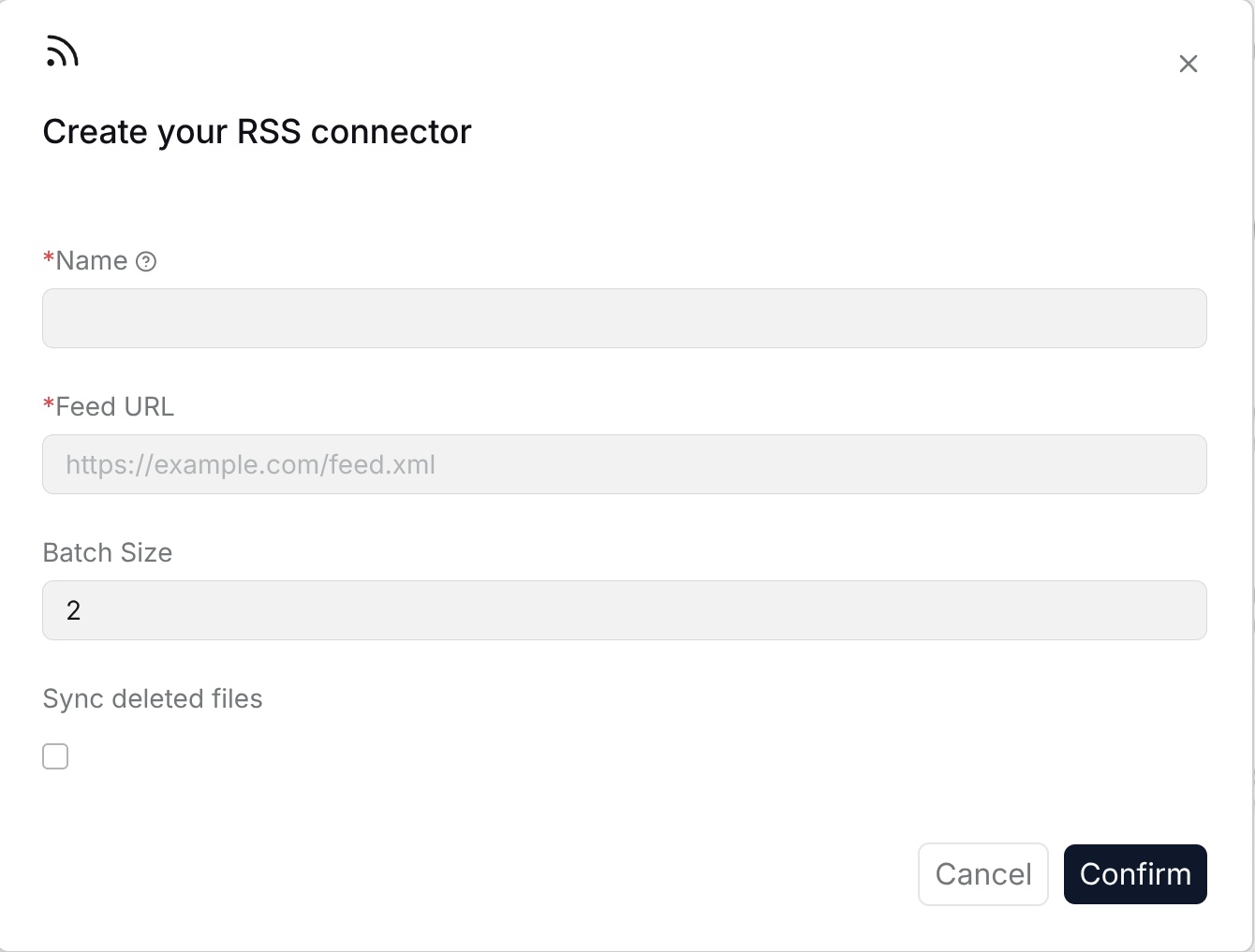
- **Name**: Customize the name in RAGFlow to identify this RSS connection.
|
|
- **Feed URL**: Fill in the RSS or Atom subscription address on the page that needs to be synchronized.
|
|
- **Batch size**: Set the number of subscription entries processed in each batch.
|
|
- **Sync deleted files**: After this is enabled, content deleted from the external system is removed from the Dataset index.
|
|
|
|
|
|
|
|
## Sitemap
|
|
|
|
The Sitemap data source is used to synchronize the web pages listed in a public `sitemap.xml` to a RAGFlow Dataset. It is the simplest way to index a documentation site, a corporate website, or a blog without writing a crawler: the site itself declares which pages exist and when they were last modified.
|
|
|
|
**Requirements**: Provide a public sitemap and web pages accessible over HTTP or HTTPS from the RAGFlow server. Private and loopback addresses are not supported. Both sitemap files and sitemap indexes are supported; see the [sitemap protocol](https://www.sitemaps.org/protocol.html).
|
|
|
|
**Configuration parameters**:
|
|
|
|
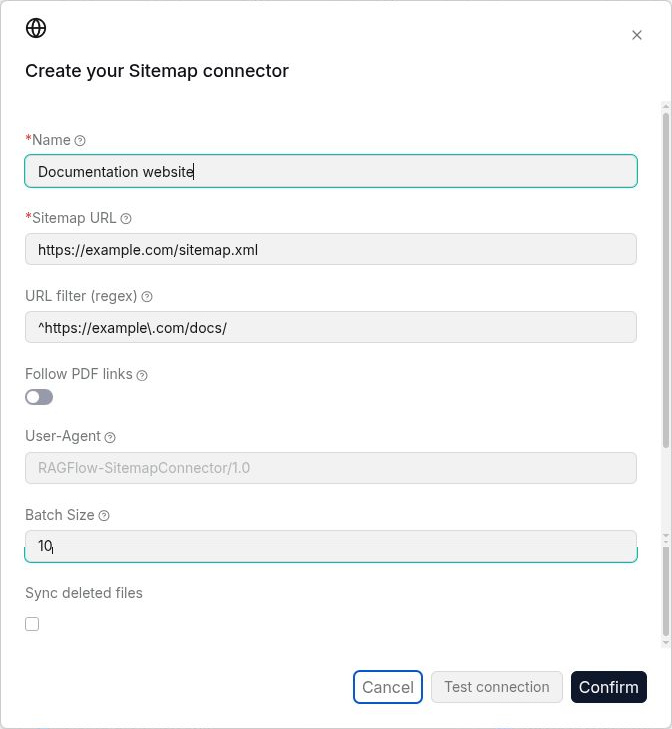
- **Name**: Customize the name in RAGFlow to identify this Sitemap connection.
|
|
- **Sitemap URL**: The URL of the `sitemap.xml` or sitemap index to crawl, for example `https://example.com/sitemap.xml`.
|
|
- **URL filter (regex)**: Optionally limit synchronization to matching URLs, for example, `^https://example\.com/docs/`. The connection test fails if no URL matches.
|
|
- **Follow PDF links**: When enabled, PDF files linked from the crawled HTML pages are indexed as well. Each PDF is indexed once even when several pages link to it.
|
|
- **Restrict PDFs to sitemap domain**: When enabled (default), only PDF links hosted on the same domain as the sitemap are followed.
|
|
- **User-Agent**: The `User-Agent` header sent with every request. Leave empty to use `RAGFlow-SitemapConnector/1.0`. Set it when the target site filters unknown crawlers.
|
|
- **Batch size**: The number of pages fetched and sent to RAGFlow per batch.
|
|
- **Sync deleted files**: After this is enabled, pages removed from the sitemap are removed from the Dataset index.
|
|
|
|
Web pages are imported as documents. If **Follow PDF links** is enabled, linked PDFs are also imported.
|
|
|
|
Subsequent synchronizations use the sitemap's last-modified dates to identify updates. Pages without a last-modified date are fetched only during a full synchronization; unchanged content is skipped.
|
|
|
|
|
|
|
|
## WebDAV
|
|
|
|
The WebDAV data source is used to connect to a WebDAV server and synchronize files from a specified remote path to a RAGFlow Dataset.
|
|
|
|
**Requirements**: Use a WebDAV server URL and account with read access to the target remote path.
|
|
|
|
**Configuration parameters**:
|
|
|
|
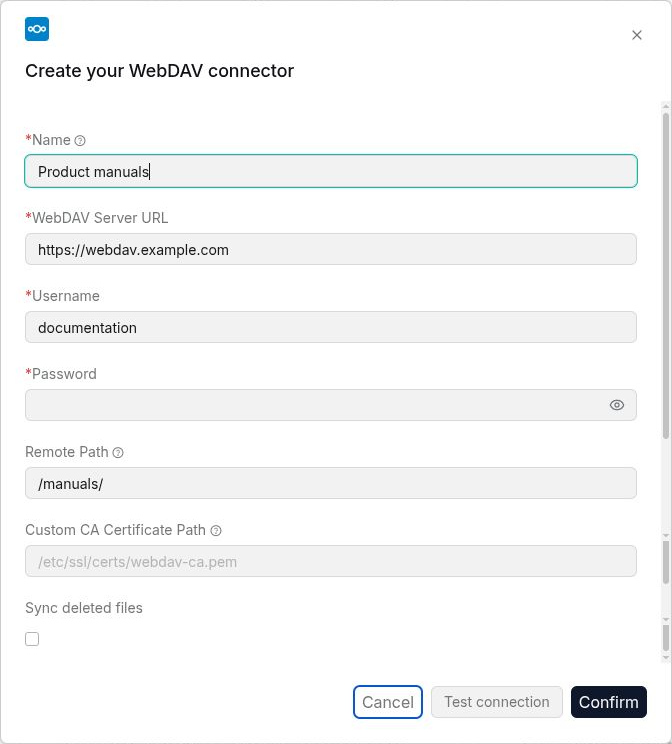
- **Name**: Customize the name in RAGFlow to identify this WebDAV connection.
|
|
- **WebDAV server URL**: Fill in the WebDAV server URL, for example, `https://webdav.example.com`.
|
|
- **Username**: Fill in the username used to access the WebDAV server.
|
|
- **Password**: Fill in the password for the WebDAV account.
|
|
- **Remote path**: Specify the remote directory to synchronize. The default value is `/`.
|
|
- **Custom CA Certificate Path**: Optional. Fill in the path to a custom CA certificate when required, for example, `/etc/ssl/certs/webdav-ca.pem`.
|
|
- **Sync deleted files**: After this is enabled, files deleted from the external system are removed from the Dataset index.
|
|
|
|
|
|
|
|
## Airtable
|
|
|
|
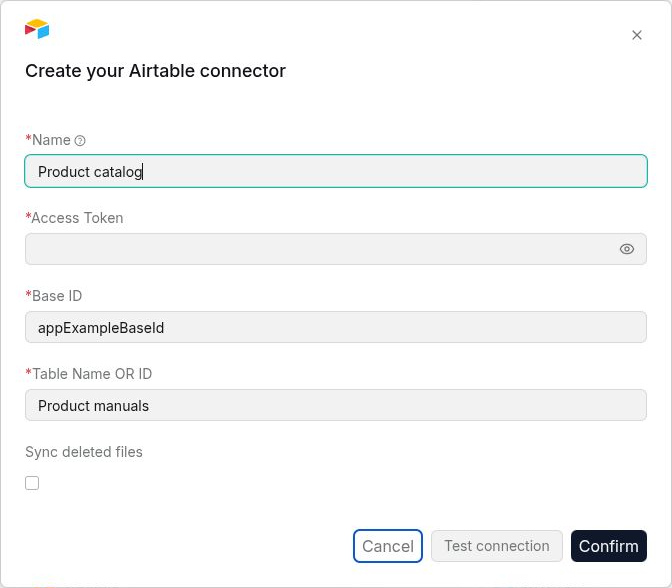
The Airtable data source is used to synchronize records from a specified table in an Airtable base to a RAGFlow Dataset.
|
|
|
|
**Requirements**: Use an Airtable access token with read access to the target base and table.
|
|
|
|
**Configuration parameters**:
|
|
|
|
- **Name**: Customize the name in RAGFlow to identify this Airtable connection.
|
|
- **Access token**: Fill in the access token used to access the Airtable API.
|
|
- **Base ID**: Fill in the ID of the target Airtable base.
|
|
- **Table name or ID**: Fill in the name or ID of the table to synchronize.
|
|
- **Sync deleted files**: After this is enabled, content deleted from the external system is removed from the Dataset index.
|
|
|
|
|
|
|
|
## Salesforce
|
|
|
|
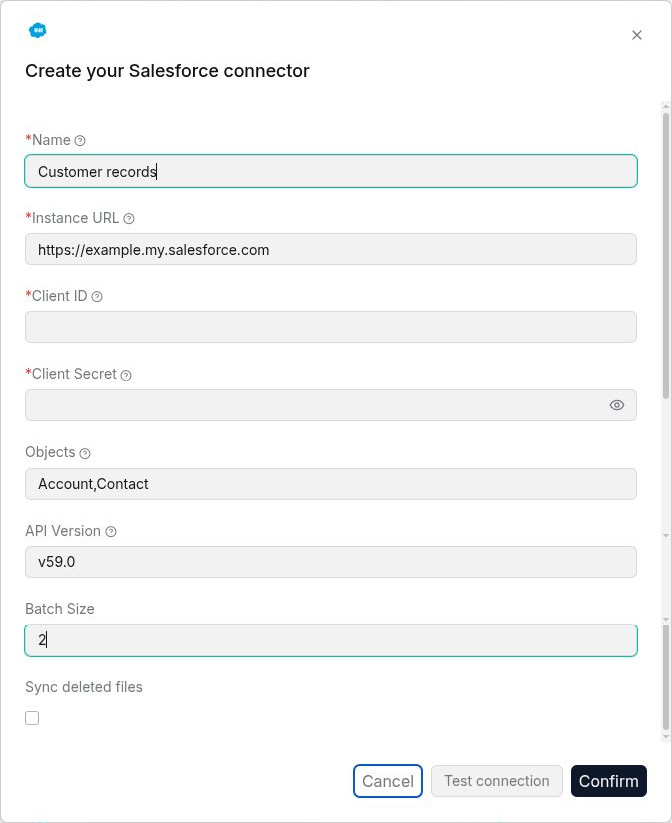
The Salesforce data source is used to connect to Salesforce and synchronize records from specified Salesforce objects to a RAGFlow Dataset. Supported objects can include accounts, contacts, opportunities, cases, and knowledge content.
|
|
|
|
**Requirements**: Use Salesforce client credentials with API access and read permission for the objects to synchronize.
|
|
|
|
**Configuration parameters**:
|
|
|
|
- **Name**: Customize the name in RAGFlow to identify this Salesforce connection.
|
|
- **Instance URL**: Fill in the Salesforce instance URL, for example, `https://your-domain.my.salesforce.com`.
|
|
- **Client ID**: Fill in the client ID used to connect to Salesforce.
|
|
- **Client secret**: Fill in the corresponding client secret.
|
|
- **Objects**: Specify the Salesforce objects to synchronize. Multiple objects can be specified, for example, `Account,Contact,Opportunity,Case,Knowledge__kav`.
|
|
- **API version**: Set the Salesforce API version to use. The default value in the current UI is `v59.0`.
|
|
- **Batch size**: Set the number of records processed in each batch. The default value is **2**.
|
|
- **Sync deleted files**: After this is enabled, content deleted from the external system is removed from the Dataset index.
|
|
|
|
|
|
|
|
## Zotero
|
|
|
|
Use Zotero to synchronize PDF attachments from a Zotero library into a RAGFlow Dataset for retrieval and question answering about papers and references.
|
|
|
|
**Requirements**: Use a Zotero API key with read access to the target library. Attachments must be downloadable from Zotero cloud or the configured WebDAV server.
|
|
|
|
**Configuration parameters**:
|
|
|
|
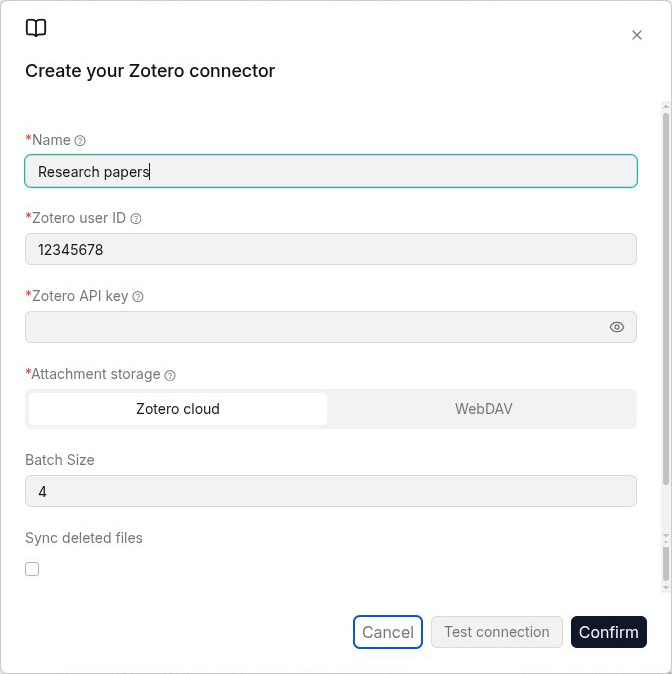
- **Name**: Enter a name that identifies this connection.
|
|
- **Zotero user ID**: Enter the ID of the Zotero user whose library you want to synchronize.
|
|
- **Zotero API key**: Enter the key used to read that library.
|
|
- **Attachment storage**: Choose **Zotero cloud** for attachments stored in Zotero storage, or **WebDAV** for attachments stored on a WebDAV server.
|
|
- When **WebDAV** is selected, complete the server URL, username, and password fields that appear. These fields are required for WebDAV storage.
|
|
- **Batch Size**: Set the number of files processed per batch. The default is `4`.
|
|
- **Sync deleted files**: Enable if files deleted from the source should also be removed from the Dataset index during synchronization.
|
|
|
|
Click **Test connection** with the completed settings, then **Confirm** to create the connection. Link it to a Dataset using [Add to a Dataset and Sync](./add_to_knowledge_base_and_sync.md). Check synchronization logs and document parsing results on a small sample before importing a large library.
|
|
|
|
|